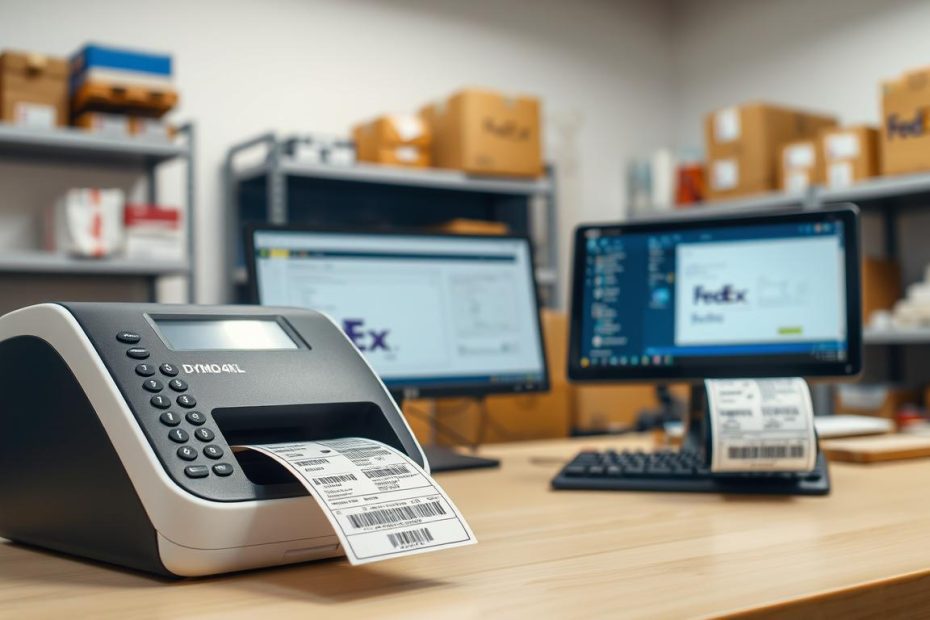
Are you tired of struggling with complicated shipping label printing? What if you could make it easy with your DYMO 4XL printer?
Printing FedEx labels on DYMO 4XL is simple. This guide will show you how. It makes your shipping process smoother and faster.
The DYMO 4XL thermal printer changes the game for shipping. It saves time, cuts down on mistakes, and lowers printing costs.
Key Takeaways
- Learn the complete setup process for DYMO 4XL printer
- Discover easy configuration steps for FedEx label printing
- Understand the benefits of thermal printing technology
- Save time and reduce shipping label errors
- Optimize your shipping workflow with DYMO 4XL
Introduction to Printing with DYMO 4XL
Shipping labels are key for fast e-commerce and logistics. The DYMO 4XL thermal printer changes the game with its advanced tech. It’s great for small businesses or big shipping needs, making labels fast and easy.
Key Features of DYMO 4XL
- Direct thermal printing tech means no ink or toner costs
- Prints up to 53 labels a minute fast
- Works with many e-commerce sites
- Has lots of label sizes and styles
Benefits for FedEx Label Printing
The DYMO 4XL is top-notch for fedex label printing. It brings big benefits to your shipping:
| Benefit | Impact |
|---|---|
| Cost Efficiency | No ink or toner costs |
| Speed | Prints 53 labels a minute |
| Quality | Labels are clear and scannable |
| Versatility | Works with FedEx, eBay, Amazon, Etsy |
The DYMO 4XL makes shipping better with precision engineering and easy design. Its thermal tech means top-quality labels every time. It’s a must-have for today’s shipping needs.
Setting Up Your DYMO 4XL Printer
To start using your DYMO 4XL for FedEx labels, you need to set it up right. This guide will help you get your thermal label printer ready. You’ll learn how to make shipping labels easily and fast.
Unboxing and Initial Setup
First, unpack your DYMO 4XL printer carefully. Make sure you have everything in the box:
- DYMO 4XL thermal printer
- Power adapter
- USB cable
- Label rolls
- Quick start guide
Computer Connection Process
Connecting your DYMO 4XL for FedEx labels needs a smart plan. Don’t plug in the printer yet. Here’s what to do:
- Go to the DYMO website
- Download the newest driver for your computer
- Install the software fully
- Plug in the printer via USB after you install
Software Installation
Getting the right software is key for DYMO 4XL FedEx labels. Always download from DYMO’s official site for the best results. Check your computer’s device manager to see if the printer is found.
Configuring Your DYMO 4XL for FedEx Labels
Getting your DYMO 4XL printer ready for FedEx shipping labels is important. You need to set it up right. This way, your labels will print perfectly, saving you time and avoiding mistakes.
Selecting the Correct Label Size
Choosing the right dymo 4xl label size for FedEx is key. FedEx needs specific label sizes. Your printer must match these sizes exactly.
- Standard FedEx label size: 4 in x 6 in
- DYMO label code: 1744907
- Ensure label matches shipping requirements
Adjusting Printer Settings
To get your DYMO 4XL ready, follow these steps:
- Open Control Panel > Devices & Printers
- Right-click DYMO 4XL printer
- Select Printing Preferences
- Set orientation to Portrait
- Click Advanced settings
- Choose Paper Size: 1744907 (4 in x 6 in)
- Set Print Quality to Barcodes and Graphics
Pro tip: Always print a test label first. This checks if everything is right. Your DYMO 4XL will then print crisp, professional FedEx labels every time.
Printing FedEx Shipping Labels via Website
Printing FedEx labels at home is now easy with online services. The FedEx website lets you make and print labels from home or office. It’s very user-friendly.
To print FedEx labels at home, first, you need to log into your FedEx account. It’s easy and makes shipping simple.
Accessing FedEx Online Services
To start printing FedEx labels at home, follow these steps:
- Visit the official FedEx website
- Click on the “Ship” or “Create a Shipment” button
- Sign in to your existing FedEx account or create a new one
- Verify your account information
Choosing Your Shipping Options
FedEx offers many shipping options. Here’s what you can choose from:
| Shipping Service | Delivery Time | Best For |
|---|---|---|
| FedEx Ground | 1-5 business days | Non-urgent, cost-effective shipments |
| FedEx Express | 1-3 business days | Time-sensitive packages |
| Priority Overnight | Next business day by 10:30 AM | Urgent deliveries |
When printing FedEx labels at home, pick the right shipping option. Make sure to enter your package’s details right. This ensures you pay the right price and get it delivered on time.
Pro tip: Use the address validation tool to prevent delivery issues and save time during the shipping process.
Using FedEx Ship Manager for Label Creation
FedEx Ship Manager makes shipping easy. It works well with DYMO 4XL. This means you can ship faster and better.
Start your journey to better shipping with FedEx Ship Manager. Here’s how to use it with your DYMO printer.
Accessing Your FedEx Account
Here’s how to start:
- Navigate to the FedEx website
- Click on the “Sign In” button
- Enter your login credentials
- Select “Ship Manager” from the dashboard
Entering Shipping Information
It’s easy to enter your shipping info. You need to give:
- Sender’s complete address
- Recipient’s shipping details
- Package weight and dimensions
- Preferred shipping service
Printer Configuration
Set up your DYMO 4XL in Ship Manager for easy printing:
| Step | Action |
|---|---|
| 1 | Open Preferences menu |
| 2 | Select Print Settings |
| 3 | Choose DYMO 4XL as default printer |
| 4 | Confirm label size settings |
Follow these steps to use FedEx Ship Manager and DYMO 4XL. You’ll make professional shipping labels easily.
Troubleshooting Common Printing Issues
Printing FedEx shipping labels with your DYMO printer can sometimes encounter unexpected challenges. Understanding how to diagnose and resolve common issues will help you maintain smooth shipping operations and minimize frustration.
Print Quality Challenges
When your DYMO printer produces unclear or faded FedEx shipping labels, several solutions can help:
- Clean print heads using a soft, dry cloth
- Verify print quality settings are configured for barcodes and graphics
- Replace worn-out or damaged label rolls
- Check printer firmware for updates
Connectivity Troubleshooting
Connectivity problems can disrupt your FedEx shipping label printing workflow. Try these steps:
- Power cycle the DYMO printer
- Check USB cable connections
- Test alternative USB ports
- Update printer drivers
- Verify printer recognition in system settings
Addressing Label Size Errors
Label size discrepancies can prevent successful printing of your FedEx shipping labels. Ensure proper configuration by:
- Matching label roll size in DYMO software
- Aligning label spools correctly
- Adjusting label sensor settings
- Securing loose label rolls
If persistent issues arise, contact DYMO or FedEx support for specialized assistance with your shipping label printer.
Alternative Methods for Creating FedEx Labels
There are many ways to print FedEx labels at home, not just the FedEx website. Trying different methods can make shipping easier and faster.
Third-Party Software Solutions
Many software tools can make printing FedEx labels at home better:
- ShipStation: Supports many carriers and works well with online stores
- Shippo: Offers flexible shipping for all business sizes
- AfterShip: Makes tracking and label making easy
These tools work with big online stores like Shopify and Amazon. They help you print labels in batches and manage shipping easily.
Mobile App Options
Now, you can print FedEx labels on your phone. The FedEx Mobile app lets you:
- Make shipping labels fast
- Track packages live
- Manage shipments on your phone
Using these options can make your shipping work better. It cuts down on typing and makes things more efficient.
Tips for Efficient Label Printing
To make your dymo 4xl fedex label printing better, plan well and stay organized. This helps your business work better and makes customers happy.
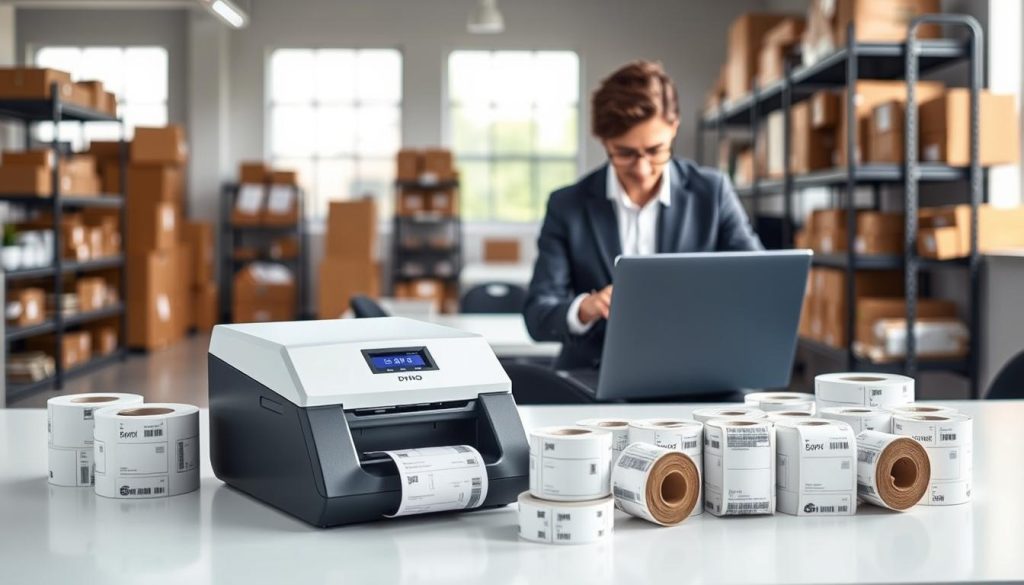
Start by making your workspace better for shipping. You want to make the label printing process smooth and quick.
Organizing Your Shipments
Organizing your shipments well can make your label printing faster and more accurate. Here are some tips:
- Group orders by shipping priority
- Create dedicated shipping zones
- Implement batch processing techniques
- Develop consistent labeling protocols
Stocking Up on Labels
Don’t let out-of-labels stop your shipping. Here’s how to manage labels better:
- Calculate monthly label usage
- Purchase labels in bulk for discounts
- Store labels in cool, dry environments
- Maintain a minimum stock buffer
Using these tips will make your dymo 4xl fedex label printing better. It will make your work smoother and more efficient.
Pro tip: Regular maintenance of your DYMO 4XL printer ensures consistent, high-quality label production.
Conclusion and Final Thoughts
You now know how to print FedEx labels on DYMO 4XL. This makes your shipping work easier. You’ve gone from setting up your printer to making professional labels.
Printing FedEx labels on DYMO 4XL is simple. First, install the DYMO drivers. Then, set up your printer right. Use FedEx Ship Manager to connect everything smoothly.
Your DYMO 4XL is a key tool for your business. It helps you work faster and better. You can use it with many shipping services and labels.
Keep learning how to print FedEx labels on DYMO 4XL. Every label you print makes your shipping better. It helps you work more efficiently and please your customers.