Ever wondered how shipping departments print perfect FedEx labels every time? They use a Zebra printer. This makes shipping easy. Learning to print FedEx labels on a Zebra printer is easy with the right help.
If you own a small business or manage a shipping department, learning to print FedEx labels is key. This guide will help you from start to finish. You’ll learn to print professional shipping labels with ease.
Your Zebra printer is a powerful tool for shipping. Follow our expert tips to print FedEx labels smoothly. You’ll save time and avoid shipping mistakes.
Key Takeaways
- Understand the complete process of printing FedEx labels on Zebra printers
- Learn step-by-step setup and configuration techniques
- Discover troubleshooting methods for common printing challenges
- Optimize your shipping workflow with professional label printing
- Gain confidence in using your Zebra printer for shipping labels
Understanding Zebra Printers and Their Compatibility
Your zebra thermal printer is key for FedEx shipping labels. The right printer boosts your shipping workflow and efficiency.
Zebra printers are known for their reliability and precision. They offer big advantages for businesses and shippers. This makes FedEx setup easier.
Popular Zebra Printer Models for Shipping
Choosing the right zebra thermal printer depends on your shipping needs. Here are some top models:
- Zebra ZD420 – Ideal for small businesses
- Zebra ZD620 – Advanced features for medium-volume shipping
- Zebra ZP450 – Compact and cost-effective option
- Zebra GK420d – Budget-friendly desktop printer
FedEx Label Specifications
Knowing the technical needs is key for a smooth setup. Most labels need specific specs:
- Standard Label Size: 4×6 inches
- Resolution: 203 DPI or 300 DPI
- Printing Language: ZPL (Zebra Programming Language)
When picking your Zebra printer, look at two main printing techs. Direct thermal printers are great for short-term labels. Thermal transfer printers make labels last longer, even in tough conditions.
Your printer must match FedEx shipping needs. This ensures labels are made right, avoiding shipping delays.
Setting Up Your Zebra Printer for Label Printing
To get your Zebra printer ready for FedEx labels, you need to set it up right. This guide will help you through each step. This way, you can install and configure your printer smoothly.
Unboxing and Initial Printer Preparation
When you get your Zebra printer, do these important things:
- Take out all packaging carefully
- Put the printer on a flat, stable surface
- Make sure all parts are there
- Look for any damage from shipping
Installing Your Zebra Printer Driver
Getting the right zebra printer driver for FedEx is key for easy label printing. Go to the Zebra website. Find the driver for your printer model and operating system.
- Go to Zebra’s driver download page
- Pick your exact printer model
- Choose the right operating system version
- Download the latest driver package
- Follow the installation wizard
Connecting Your Zebra Printer
You have three main ways to connect your Zebra printer:
- USB Connection: Direct computer attachment
- Ethernet: Network printing for office environments
- Wireless Wi-Fi: Flexible printer placement
Pick the connection method that fits your shipping needs. Make sure your computer sees the printer before you start printing FedEx labels.
Installing FedEx Ship Manager Software
Start your shipping process with the right software. FedEx Ship Manager makes creating and managing labels easy. It’s great for small businesses or those who ship sometimes.
Downloading the FedEx Ship Manager
It’s easy to start with fedex label printing instructions. Here’s how to download the software:
- Visit the official FedEx website
- Navigate to the Ship Manager download section
- Select the version for your computer
- Click the download button
Step-by-Step Installation Guide
Next, follow a simple installation guide. Make sure your computer has these basics:
| Requirement | Minimum Specification |
|---|---|
| Operating System | Windows 10 or Mac OS X 10.14+ |
| RAM | 4 GB |
| Internet Connection | Broadband |
Here’s how to install fedex label printing instructions:
- Find the downloaded file
- Double-click to start the installer
- Follow the instructions on the screen
- Enter your FedEx account details
- Finish the installation
Having trouble? Call FedEx customer support at 1.800.GoFedEx (1.800.463.3339) for help with your setup.
Creating a FedEx Shipping Label
Printing FedEx shipping labels is easy once you know how. You just need to follow a few steps. This way, you can make professional labels fast and easy.
Accessing the FedEx Ship Manager
To start, you need to get into the FedEx Ship Manager. Here’s how:
- Go to the FedEx website
- Log in to your FedEx account
- Find the Ship Manager section
- Click “Create a Label”
Filling Out Shipping Information
When making FedEx labels, getting the shipping info right is key. You’ll need to enter:
- Your full address
- The recipient’s address
- The package’s weight and size
- The shipping service you want
Choosing the Right Label Format
Picking the right label size is important. Thermal labels are usually best. The 4×6 inch size works well with most printers. Make sure it fits your Zebra printer to avoid mistakes.
Pro tip: Save your favorite label size for next time. It makes making labels easier.
Configuring Printer Settings for FedEx Labels
Getting your FedEx shipping label printer just right is key. Your Zebra printer must be set up with care. This ensures your shipping labels are always top-notch and ready for scanning.
Knowing your printer’s settings is important. It helps you print labels better. Here’s how to set up your Zebra printer for FedEx labels.
Selecting Your Zebra Printer
First, pick the right printer. Follow these steps to set up your Zebra printer:
- Open FedEx Ship Manager software
- Navigate to printer settings
- Select your specific Zebra printer model
- Set as default shipping label printer
Setting Label Dimensions
Label size is very important. Most labels need to be 4×6 inches. Make sure your printer is set to these dimensions:
- Confirm paper size (4×6 inches)
- Check print orientation
- Adjust margin settings
- Enable automatic label size detection
Adjusting Print Quality Options
Print quality is key for clear labels. Set these important options:
- Set barcode darkness for clear scanning
- Adjust print speed based on volume
- Select appropriate resolution
- Test print to verify label quality
With the right setup, your Zebra printer will make perfect FedEx labels. These labels will scan well and help with smooth delivery.
Printing the FedEx Label
Printing a FedEx label on a Zebra printer needs careful steps. It’s important to follow each step well. This will make your shipping process smoother.
Sending the Print Job
Ready to print your FedEx label? Here’s what to do:
- Open the FedEx Ship Manager software
- Make sure all shipping details are right
- Pick your Zebra printer
- Hit the “Print Label” button
Monitoring the Printing Process
Watching the printing process is key. Look out for these signs:
- Check the printer’s status lights
- Listen for the usual printing sounds
- See if the label comes out right
| Printer Status | Action Required |
|---|---|
| Green Light | Printing Normal |
| Red Light | Check for Paper/Ribbon Issues |
| No Light | Verify Printer Connection |
If printing problems happen, check your printer. Restart the print job if it doesn’t work first time. Make sure your Zebra printer is set up right for FedEx labels.
Troubleshooting Common Printing Issues
Printing FedEx labels on Zebra printers can sometimes present challenges. Understanding how to troubleshoot fedex labels on zebra printers will help you resolve common printing problems quickly and efficiently.
When you encounter printing issues, follow these systematic troubleshooting steps to diagnose and resolve problems with your Zebra printer.
Labels Not Printing Correctly
Incorrect label printing can be frustrating when processing shipping documents. Here are key solutions for troubleshooting fedex labels on zebra:
- Check label alignment and printer settings
- Clean the printhead thoroughly
- Verify label type and size compatibility
- Adjust print darkness settings
Printer Not Recognized by Computer
Connection problems can interrupt your shipping workflow. Resolve printer recognition issues with these steps:
- Verify USB cable connections
- Restart printer and computer
- Reinstall printer drivers
- Check device manager settings
Connection and Communication Errors
Network and communication disruptions can prevent smooth label printing. Address these challenges using the following troubleshooting techniques:
| Error Type | Potential Solution |
|---|---|
| Timeout Errors | Reset network settings |
| Print Queue Jams | Clear print spooler |
| Network Connectivity | Verify Ethernet/Wi-Fi connection |
Pro tip: If persistent issues occur, contact FedEx support at 1.800.GoFedEx (1.800.463.3339) for expert assistance.
Updating Zebra Printer Firmware
It’s important to keep your Zebra printer firmware up to date. This ensures your printer works well with FedEx. Firmware is like the brain of your printer, making sure it prints right and connects well.
Why Firmware Updates Matter
Firmware updates help your shipping work flow a lot:
- They make your printer work better with FedEx Ship Manager
- They help your printer print more reliably
- They fix bugs in the software
- They make your printer connect to the network better
Checking Your Current Firmware Version
You can check your firmware in two ways:
- Print a configuration label from your Zebra printer
- Use Zebra Setup Utilities software
When you update for FedEx, get the right firmware from Zebra’s website. Make sure it matches your printer model.
| Firmware Update Method | Complexity | Recommended For |
|---|---|---|
| Zebra Setup Utilities | Easy | Most Users |
| USB Transfer | Moderate | Technical Users |
| Network Deployment | Complex | Large Organizations |
Always back up your printer settings before updating. This helps avoid losing data or having to fix settings later.
Maintaining Your Zebra Printer
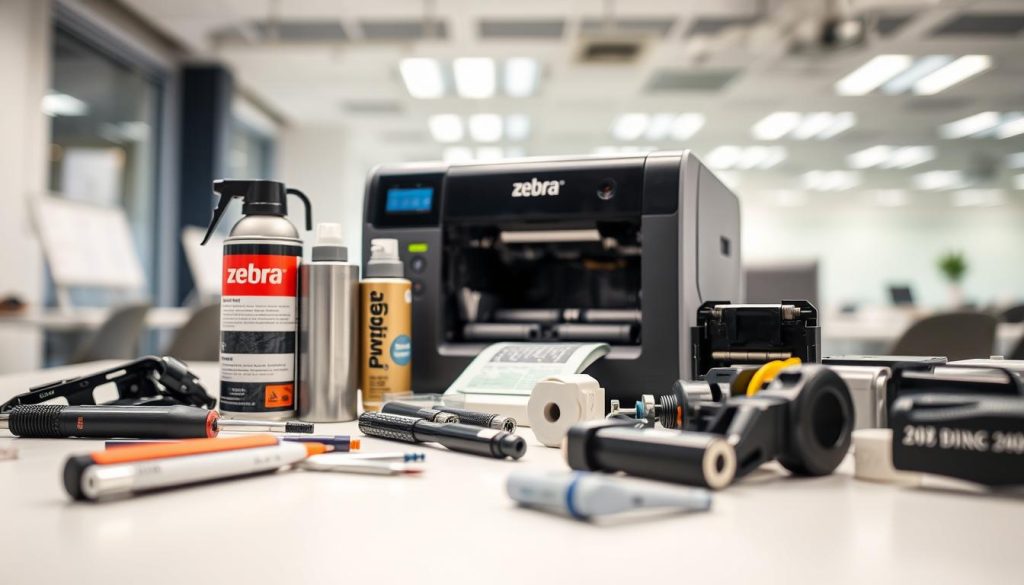
Keeping your Zebra thermal printer in good shape is key for top-notch FedEx label printing. Regular upkeep stops sudden failures and makes your printer last longer. A few easy steps can keep your printer working well and save you from expensive fixes.
Regular Cleaning Procedures
Here’s what you need to do for your Fedex label printer care:
- Clean the printhead every 1-2 label rolls
- Use isopropyl alcohol and special cleaning cards
- Get rid of dust and sticky stuff from sensors
- Wipe the outside of the printer
Critical Maintenance Techniques
There are important parts of your Zebra thermal printer that need extra care. Focus on these key areas:
| Component | Maintenance Action | Frequency |
|---|---|---|
| Printhead | Clean with alcohol swab | Every 2 rolls |
| Platen Roller | Remove dust and debris | Weekly |
| Label Sensors | Gentle cleaning | Bi-weekly |
Replacing Labels and Ribbons
Here’s how to replace labels or ribbons:
- Adjust media guides carefully
- Thread labels right through the printer
- Run calibration after media change
- Check ribbon tension for thermal transfer printers
By following these zebra thermal printer maintenance tips, you’ll get the best performance. Regular care stops printing problems and keeps labels looking great.
Finding Support for Your Zebra Printer
Finding help for your printer can be tough. But, with the right tools, you can fix any problem fast. Many places offer help for your printer issues.
- Zebra’s Official Customer Support Channels
- FedEx printer help resources
- Online Community Forums
- Technical Documentation Portals
Utilizing Zebra’s Customer Support
Zebra has many ways to help you. Their team is ready to help with:
- Technical Support Phone Line
- Email Support
- Live Chat Services
- Support Ticket System
Before you call for help, have your printer info ready. This includes:
- Model Number
- Serial Number
- Current Firmware Version
- Detailed Problem Description
Online Resources and Communities
Online, you can find lots of help too. Websites and forums are great for getting advice from others.
| Resource Type | Platform | Focus |
|---|---|---|
| Community Forum | Zebra Community Forum | Printer-specific discussions |
| Reddit Community | r/shipping | Shipping and printer solutions |
| Video Tutorials | YouTube Channels | Visual troubleshooting guides |
For FedEx help, call 1.800.GoFedEx (1.800.463.3339) or visit fedex.com. They can help with shipping and printing problems.
Exploring Alternative Label Printing Solutions
Zebra printers are not the only choice for shipping labels. There are many fedex compatible label printers out there. Each one has its own special features for your business needs.
There are many thermal shipping label printers to choose from. Each one has its own benefits for your shipping needs. Let’s look at some of the best options:
- Rollo Printers: Known for compact design and budget-friendly pricing
- Dymo LabelWriter 4XL: Perfect for small business shipping needs
- Brother QL Series: Offers versatility across multiple label types
- MUNBYN Thermal Printers: Great for startups with limited budgets
Comparing Printer Capabilities
When picking fedex compatible label printers, think about these important things:
- Print Quality: How clear and sharp the labels are
- Speed: How fast the printer can make labels
- Durability: How well the printer lasts over time
- Cost: What it costs to buy and keep the printer running
Understanding Label Size Requirements
Not all thermal shipping label printers can print the same sizes. FedEx likes 4×6 inch labels, but some places need 4×8 inch ones. Make sure your printer can print different sizes for more options.
Choosing the right printer depends on how much you ship, your budget, and what your business needs. Do your homework and try out different printers to find the best one for you.
Tips for Efficient Shipping with FedEx
Mastering FedEx shipping needs focus and knowing the best ways to make labels. Your success comes from smart steps that make shipping smoother and cut down on delivery problems.
Always check addresses with FedEx’s tool when making labels. This step cuts down on returns and makes sure packages get where they need to go. Print labels right before shipping to keep barcodes fresh and improve scanning at FedEx.
Good shipping label practices mean placing labels right and making them clear. Stick labels on flat areas without wrinkles, away from seams or tape. Add full return addresses and think about adding tracking numbers for better tracking.
Maximizing Your Shipping
Get more from your FedEx account by looking into discounts and special shipping options. FedEx One Rate gives set prices for all businesses, and FedEx Delivery Manager offers better tracking and control. For help, call 1.800.GoFedEx or visit fedex.com to make your shipping better.