Did you know a single shipping mistake can cost you money? Learning how to void a UPS shipment can save you from wasted shipping costs and billing errors.
Shipping packages often leads to mistakes. You might enter the wrong address or decide to change carriers last minute. UPS lets you cancel a shipping label before it’s used.
Voiding a UPS shipment cancels your label and stops the charge before it’s too late. This action saves your money and keeps your shipping account tidy. It’s useful for both small business owners and those who ship items now and then.
This guide will teach you everything you need to know. You’ll learn how to void labels on platforms like Shopify and UPS WorldShip. You’ll also find out about credits versus refunds and the time limits for voiding labels.
Don’t worry if it seems hard at first. Voiding a shipment is easy once you get the hang of it. Let’s start.
Key Takeaways
- Voiding a UPS shipment means canceling a shipping label before it’s used, saving you money and preventing billing mistakes.
- You can void labels created through UPS.com, Shopify, PitneyShip, WorldShip, and other shipping platforms.
- UPS typically allows you 30 days from the label creation date to void a shipment.
- Voided labels usually result in a credit to your UPS account, not a refund to your original payment method.
- Some restrictions apply once your package is picked up or added to a manifest, making quick action important.
- Different platforms have slightly different steps for voiding, but the concept remains the same across all carriers.
- Keeping detailed records of voided shipments helps you track credits and manage your shipping account more effectively.
Understanding UPS Shipment Voiding
Voiding a UPS shipment helps you manage your shipping costs and fix mistakes. It’s useful for small businesses and e-commerce sites. Knowing how to cancel a UPS shipping label can save money and avoid headaches. This part explains what voiding means and why you might need it.
What Does It Mean to Void a UPS Shipment?
Voiding means canceling an unused shipping label you’ve made but won’t use. When you void a shipment, you tell UPS you won’t ship with that label. This stops the label from being used and prevents charges on your bill.
Voiding is like an “undo” for shipping. After voiding a label, UPS stops tracking it. You might get a refund or credit, depending on your situation. This is different from just deleting a label from your computer. Voiding tells UPS the shipment won’t happen.
Why You Might Need to Cancel a Shipping Label
There are many reasons to cancel a UPS shipping label. You might have made a duplicate label by mistake, or entered the wrong address. Maybe you picked the wrong shipping method, or your delivery date is no longer good.
Here are some common reasons to cancel a UPS shipment:
- Duplicate labels created by mistake
- Wrong recipient address or ZIP code entered
- Incorrect shipping service level selected
- Package no longer needs to be shipped
- Customer canceled their order
- Delivery deadline won’t be met due to holidays
- Better shipping option discovered
Knowing when and why to void shipments helps you avoid extra charges. It also helps you keep better control over your shipping costs.
Types of UPS Labels You Can Void
Knowing which shipping labels you can void is key to managing your shipments well. Not all UPS labels are the same. Knowing the differences helps you make smart choices about canceling shipments.
Whether you made your labels on UPS.com, third-party platforms, or shipping software, you can void them. Each label type has its own way to void it and refund rules.
Standard UPS Shipping Labels
Standard UPS shipping labels are the most common. You make these labels through your UPS account or UPS.com when shipping a package. These labels work for all UPS service levels, from Ground to Express.
Voiding a standard UPS shipping label is easy. You can cancel these labels within a certain time frame. UPS will process your request quickly. The void UPS prepaid label process also applies to standard labels, giving you flexibility if your plans change.
- Created directly through UPS.com
- Available for all service levels
- Easy to void through your UPS account
- Refunds typically process within 5-7 business days
UPS Prepaid and Third-Party Labels
UPS prepaid labels are different because you pay for shipping upfront. When you void UPS prepaid label shipments, the refund process may vary. This depends on how you bought them.
Third-party labels bought through other companies have similar voiding rules. You might get a credit to your account instead of a direct refund. Some prepaid labels have restrictions on voiding, like if bought in bulk at discounted rates.
| Label Type | Voiding Availability | Refund Method |
|---|---|---|
| Standard UPS Labels | Yes, within 30 days | Direct refund or account credit |
| UPS Prepaid Labels | Yes, with conditions | Account credit (varies by purchase) |
| Third-Party Labels | Yes, through provider | Per provider policy |
Platform-Specific Labels
Many businesses use e-commerce platforms and shipping software to create UPS labels. Shopify, PitneyShip, and UPS WorldShip all generate labels that you can void. But the steps differ slightly from platform to platform.
Voiding UPS prepaid label orders created through Shopify happens in the Shopify dashboard. PitneyShip handles voiding for both UPS and FedEx labels through its own system. WorldShip, UPS’s shipping software, offers batch voiding for multiple shipments at once.
- Shopify: Void labels through your Shopify orders dashboard
- PitneyShip: Access voiding options in your shipping history
- WorldShip: Use batch processing for multiple label cancellations
Knowing your label type helps you navigate the voiding process with confidence. Each platform has unique steps. Yet, the core concept remains the same: you can cancel unwanted shipments and recover your costs through credits or refunds.
Prerequisites for Voiding a UPS Shipment
Before you can delete a UPS shipment online, you need to know a few things. You must have the right account and access levels. This section will guide you on what to do before you start.
UPS Account Requirements
To delete a UPS shipment online, you need an active UPS account. Your account is key for managing your shipping. You might have a personal, business, or third-party account like Shopify or PitneyShip.
Here’s what you’ll need when you’re ready to void a shipment:
- Your UPS account login credentials
- The tracking number for the shipment you want to void
- Your account username and password
- Access to the email linked to your account
Most people and small businesses can delete shipments with a basic UPS account. You won’t face extra barriers when deleting a UPS shipment online.
Access Permissions and User Roles
Your role affects your ability to void labels. If you’re an account administrator, you can delete shipments without limits. Your role and subscription type decide what features you can use.
Your organization’s setup might impact your permissions:
| User Role | Voiding Access | Requirements |
|---|---|---|
| Account Administrator | Full access | None |
| Employee/Team Member | Limited or restricted | Special permission from administrator |
| Manager/Supervisor | Access depends on setup | Administrator assignment |
| Guest User | No access | Requires account upgrade |
If you’re not an administrator, you might need special permissions. Large organizations often have permission systems. Check your access by logging into your account and looking for voiding options.
Need help? Contact your account administrator or UPS support if you can’t find the void option. They can give you the needed permissions to delete a UPS shipment online.
Accessing Your UPS Shipment History
Finding your shipment is the first step to void a UPS shipment. You must find the label you want to cancel. This guide shows you how to access your shipping records, whether through UPS or third-party platforms.
Navigating UPS.com to Find Your Shipments
Log into your UPS account at UPS.com with your username and password. Look for the shipping history or order management section. This area shows all your recent shipments by date, tracking number, or recipient.
To find the shipment you want to void, use these methods:
- Search by tracking number if you have it handy
- Filter shipments by date range to narrow down your options
- Sort by recipient name or address
- Look through recent orders by their creation date
Once you find the shipment, note its details. You’ll need this info to void the shipment.
Locating Shipments in Third-Party Platforms
If you ship through platforms like Shopify, WooCommerce, or PitneyShip, your process is different. In Shopify, go to your admin panel, select Orders, and click the order number with the shipping label you want to void. The label info is in your order details.
For other platforms, follow these paths:
| Platform | Navigation Path |
|---|---|
| PitneyShip | Shipping & Mailing > Request a Refund |
| WooCommerce | Orders > Select Order > Shipping Details |
| Etsy | Shop Manager > Orders > Shipping Label |
Keep your shipping records organized. Store tracking numbers in a spreadsheet or folder. This makes finding labels quick and easy when you need to void them.
Step-by-Step Guide to Voiding a UPS Shipment
Voiding a UPS shipment is easy once you know where to look. You can do it in just a few clicks. Whether you’re using UPS.com, Shopify, or another platform, the steps are simple. This guide will help you void your label and get a refund or credit.
Voiding Through UPS.com
UPS.com makes managing your shipments easy. Log into your UPS account and go to your shipment history. Find the label you want to void and look for the void option. Click the void button and confirm your choice.
Choose your reason for voiding from the dropdown menu. This helps UPS understand why you’re canceling the shipment. After confirming, your refund will be processed right away.
After voiding, you’ll get a confirmation message. This message has important details about your refund or credit. Save this information for your records.
Voiding Through Shopify
Voiding is simple on Shopify too. Here’s what you need to do:
- Open your Shopify admin dashboard
- Click on the “Orders” section
- Select the specific order containing the label you want to void
- Scroll to the “Fulfilled” section
- Click the three-dot menu icon next to your shipping label
- Select “Void label” from the dropdown options
- Choose your reason for voiding the label
- Click “Void label and insurance” to confirm
Shopify gives account credits for voided labels. The credit shows up in your account in a few business days. You can use it for future shipping.
Voiding Through Other Shipping Platforms
Other platforms have different steps. Here’s what to expect on popular services:
| Platform | Steps to Void | Refund Type |
|---|---|---|
| PitneyShip | Select “Shipping & Mailing” > “Request a Refund” > Choose shipment > Click “Refund Label” or “Void Label” > Check confirmation box > Select “Continue” | Account credit or refund |
| UPS WorldShip | Open the shipment record > Click “Void Shipment” > Confirm the action > Print the void confirmation | Account credit |
| Third-party integrations | Access shipping settings > Find voiding options > Select the label > Click void/cancel > Confirm action | Varies by provider |
Each platform shows confirmation messages differently. After voiding a label, look for a confirmation number or receipt. Keep this safe for future reference.
The whole process takes less than five minutes. Most platforms process your request right away. Credits might take a few business days. Once you know these steps, managing your shipping labels is easy and stress-free.
Understanding Refunds vs. Credits for Voided Labels
When you void a UPS package before pickup, it’s important to know what happens to your money. Your shipping costs don’t just disappear. The outcome depends on your account type and where you ship from.
Some shippers get credits for future labels, while others get refunds. Knowing this helps avoid confusion about your money.
Many shippers get confused about credits and refunds. A credit is for future labels, while a refund goes back to your bank. Each has its own rules and times. Let’s look at what happens when you void a UPS package before pickup.
When You’ll Receive a Credit to Your Account
Platforms like Shopify give credits for voided labels. These credits are added to your account balance right away. You can use them for your next label purchase without delay.
Credits are different from refunds. They stay in the platform’s system. You won’t see the money in your bank. Credits are quick and easy for shippers who buy many labels.
- Credits appear immediately after voiding
- You can use them for future shipping labels
- They apply across your account balance
- No waiting period needed
When You Can Get a Direct Refund
Direct refunds go back to your original payment method. If you used a credit card, the refund goes there. Pitney Bowes UPS Rate Accounts get direct refunds. Your account type decides if you get this option.
Not all accounts get direct refunds. Credit card fees are not refundable, even if you void a package. Knowing this helps you budget better.
Processing Times for Refunds and Credits
Credits are instant when you void a label. You can use them right away. Refunds to your credit card take longer, up to 30 days.
| Refund Type | Processing Time | Where Money Goes | Availability |
|---|---|---|---|
| Account Credit | Instant | Your shipping account | Most platforms |
| Direct Refund | Up to 30 days | Your credit card | Select account types |
| Processing Fees | Not refundable | Retained by processor | All transactions |
Plan your money flow with these times in mind. For quick money, credits are better. For cash back, wait 30 days. Knowing this avoids surprises about your money.
Important Time Limits and Restrictions
When you cancel UPS WorldShip shipment labels, knowing the rules is key. These rules help the shipping system work well and stop fraud. They help you act fast when you need to make changes.
The 30-Day Voiding Window
You have a 30-day window to void a label and get a refund. This rule is for all labels, not just UPS WorldShip. After 30 days, you can’t void the label anymore.
Check your label’s creation date right away. Most platforms show this on your label history page. If you’re running out of time, void the label quickly. Don’t wait until the last minute.
Restrictions After Pickup or Manifest
Once UPS picks up your package, you can’t void the label. The same goes if a manifest has been printed. These actions mean your package is in the shipping network.
A big warning: voiding a label doesn’t mean you won’t get charged. You’ll be charged if you ship a package with a voided label. This rule is for all labels, not just UPS WorldShip.
| Voiding Scenario | Status | Result |
|---|---|---|
| Label voided before pickup | Allowed | Receive refund or credit |
| Label voided after pickup | Not allowed | No refund available |
| Label voided but package shipped | Not allowed | You get charged |
| Label over 30 days old | Not allowed | Cannot void the label |
What to Do If You Miss the Voiding Deadline
Missing the deadline doesn’t mean you’re out of luck. You can take steps to manage the situation:
- Mark the label as canceled in your shipping records for tracking purposes
- Contact UPS customer service to explain your situation and explore special circumstances
- File a claim if you never actually shipped the package using that label
- Keep detailed records showing the label wasn’t used
Talking to UPS directly might help. Explain what happened and provide proof. You might not get a refund, but customer service can help avoid extra charges.
Acting fast is key to solving shipping label issues. Set reminders for when you create labels. This way, you won’t forget the 30-day window. Being proactive saves time, money, and stress.
Platform-Specific Voiding Procedures
Different shipping platforms have their own ways to manage and void shipments. Knowing how to use each system helps you cancel labels efficiently. This keeps your shipping smooth. Let’s look at the steps for each platform.
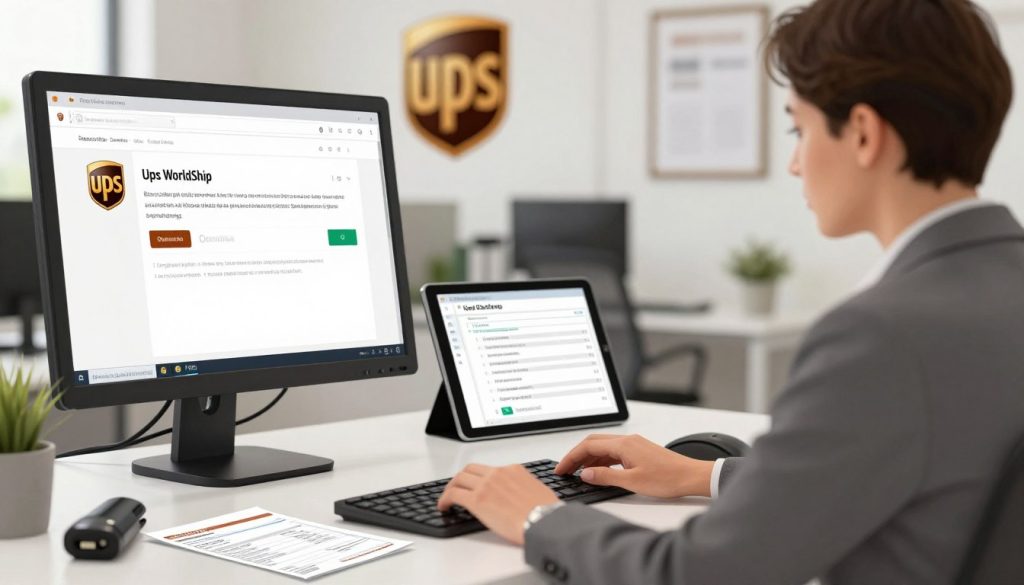
Voiding Labels in UPS WorldShip
UPS WorldShip is a software for businesses to ship packages. To cancel a shipment, open your shipment history. Find your recent shipment and select it.
Right-click on the shipment to get a menu. Choose Void to start canceling. You’ll confirm your choice. After that, the label is voided. You might get a credit or refund, depending on your account.
Voiding Labels in E-commerce Platforms
E-commerce sites like Shopify and WooCommerce have similar steps. Go to your orders section. Find the order with the label you want to void.
In the shipping area, look for a void or cancel option. Choose it and confirm. The platform will cancel the label with UPS. This usually takes 24 to 48 hours.
- Access your orders dashboard first
- Locate the specific order with the shipment
- Find the fulfillment or shipping section
- Select the void or cancel label option
- Confirm the cancellation request
Batch Voiding for Multiple Shipments
Batch voiding is great for canceling many labels at once. It’s useful when weather changes or you need to switch carriers.
To void multiple shipments in PitneyShip, go to Shipping & Mailing. Choose Request a Refund. Then, select Batch Shipments to see your grouped shipments. Expand the batch list and check the labels you want to void. Choose Refund Label or Void Label as needed.
| Platform | Access Point | Key Steps | Processing Time |
|---|---|---|---|
| UPS WorldShip | Shipment History | Right-click shipment, select Void | Immediate |
| Shopify | Orders Section | Fulfillment area, void option | 24-48 hours |
| WooCommerce | Orders Dashboard | Shipping details, cancel label | 24-48 hours |
| BigCommerce | Orders Page | Shipments tab, void label | 24-48 hours |
| PitneyShip Batch | Batch Shipments Tab | Check boxes, select refund option | 24-48 hours |
Batch voiding saves time by canceling many labels at once. It’s best for five or more shipments with the same reason for voiding.
Best Practices for Managing Shipping Labels
Managing shipping labels well saves you from stress. It saves time and money. It’s good for small businesses or big ones.
Double-Checking Before Creating Labels
Take a few minutes to check your label details. Make sure the address is right. Typos can cause delays.
Also, pick the right shipping speed. During holidays, fast shipping is key. One person had to change their label because of this.
Check your package’s weight and size. Wrong info can cost you. Use tools to avoid mistakes.
Keeping Records of Voided Shipments
Keep track of voided shipments. It’s important for your records.
| Information to Record | Why It Matters | Where to Store It |
|---|---|---|
| Confirmation Number | Proves the label was voided in UPS systems | Spreadsheet or platform notes |
| Reason for Voiding | Helps identify patterns in your shipping process | Spreadsheet or platform notes |
| Original Tracking Number | Clarifies which shipment was affected | Spreadsheet or platform notes |
| Refund or Credit Status | Ensures you receive your money back | Spreadsheet or platform notes |
| Void Date | Tracks when the action occurred | Spreadsheet or platform notes |
Keep these records for a year. Many platforms have notes for voiding. A simple spreadsheet works for small businesses.
Setting Up Alerts and Reminders
Use systems to avoid voiding labels. Here are some tips:
- Set reminders for shipping deadlines
- Alerts for labels near voiding time
- Checkpoints before printing labels
- Use platform notifications
For teams, have a review process. This catches errors. Holidays need extra care.
Digital reminders help you stay organized. Use your platform’s tracking features. This keeps you on track.
Troubleshooting Common Voiding Issues
Having trouble when you try to void a UPS shipment can be frustrating. But, most problems have easy fixes. Knowing what’s stopping you from voiding helps you solve it fast.
Whether it’s a grayed-out button or a status issue, we’ve got you covered. We’ll show you the best ways to fix these problems.
What to Do When the Void Option Isn’t Available
Sometimes, the void button is gone or grayed out. This can happen for a few reasons. Finding out why makes fixing it easier.
Common reasons include:
- Your shipping label is too old (usually over 30 days)
- Your carrier already picked up the package
- You don’t have the right permissions on your account
- The label was added to a manifest that already processed
- The shipment status has already changed to “in transit”
First, check when your label was made. If it’s over 30 days, call UPS support. If the carrier already picked it up, talk to them. For permission issues, ask your admin to give you access. For manifest problems, you need UPS to help.
Resolving Fulfillment Status Issues
Shopify users often face a problem. Your order is “Fulfilled,” and you can’t void the label. This is because fulfilled orders lock down actions to keep records safe.
To fix this, cancel the fulfillment status first. Here’s how:
- Go to your Shopify admin and find Orders
- Click the order number that shows “Fulfilled”
- Look for the Fulfillments section on that page
- Click the three-dot menu button (•••)
- Choose “Cancel fulfillment” from the dropdown
After canceling, you can void your label and get a refund or credit. Then, you can make a new fulfillment if needed.
Contacting UPS and Platform Support
If you can’t solve it yourself, it’s time to ask for help. Having the right info ready makes things faster.
Before you call or message support, have these ready:
| Information Type | Why You Need It |
|---|---|
| Tracking Number | Helps find your specific shipment in the UPS system |
| Order Number | Links your void request to your original order |
| Account Details | Confirms you own the account with the problem label |
| Screenshots of Error Messages | Shows support exactly what you’re seeing |
| Steps You’ve Already Tried | Saves support from suggesting things you’ve already tried |
For label and refund issues, contact UPS Customer Service. If you’re using Shopify, reach out to the Shopify Shipping Team. They can help fast. For other platforms like PitneyShip or WorldShip, contact their support team. Be clear and friendly, and most teams will help you out.
Conclusion and Key Takeaways
You now know how to void a UPS shipment on different platforms. The main steps are the same everywhere. You find your shipment, click to void it, pick a reason, and confirm.
This knowledge helps you manage your shipping better. You can control your shipping operations now.
Summary of the Voiding Process
Remembering key details is important for voiding labels. You have 30 days to void a shipment after it’s made. After that, UPS won’t let you cancel it.
Know the difference between a credit and a refund. Credits go back to your UPS account. Refunds go to where you paid from. Never reuse a voided label to avoid confusion.
Each platform has its own steps for voiding labels. UPS.com, Shopify, PittneyShip, and UPS WorldShip are different. Learn your platform’s exact steps.
Voiding labels saves money and keeps records clean. Whether it’s one label or many, the benefits are the same.
Final Tips for Successful Label Management
Voiding labels is part of shipping operations. Things like holiday changes and address corrections happen often. Double-check your shipment details before creating labels.
Keep records of voided shipments. Note the tracking numbers, dates, and reasons. This helps your team. If you have problems, contact UPS or your platform’s support.
You’re now ready to manage your labels well. Keep this guide handy and share it with your team. You can keep your shipping costs down.