
Did you know you can print a shipping label without a printer? UPS QR code label printing has changed the game for many shippers in the U.S. You don’t need to find the right printer or deal with tech problems before shipping.
Imagine sending packages from anywhere. With how to print ups label from qr code tech, you can go to over 5,000 UPS Store locations or 40,000 UPS Access Points. You can also print for free at some CVS and Michaels stores. This makes shipping easy and stress-free.
This guide will show you how to make your UPS QR code label printing from your computer or phone. It’s easy, even if you’re not tech-savvy. Small business owners, occasional shippers, and those without a home printer will find this very helpful.
You can do the whole process in just five minutes. The best part? Your shipping will be easy and convenient. Let’s start and see how simple it is.
Key Takeaways
- UPS QR code label printing lets you skip owning a printer.
- You can find over 45,000 places nationwide to print labels.
- The whole process takes less than five minutes.
- Your shipping label is free at UPS Stores and Access Points.
- This method is great for small businesses and occasional shippers.
- You can print labels at CVS and Michaels for extra convenience.
Understanding UPS Shipping Labels
A shipping label is like a passport for your package. It has all the info needed for safe delivery. UPS labels guide your package through the delivery network. Knowing how they work helps you ship with confidence.
What is a UPS Shipping Label?
A UPS shipping label is a barcode document. It shows your address, the recipient’s, a tracking number, and the service level. This small piece is key to getting your package to its destination.
Shipping has changed a lot. Now, you can choose between printed labels and digital ones. A UPS paperless label uses QR codes and digital formats. It’s good for the planet and works just like traditional barcodes.
- Sender name and address
- Recipient name and address
- Tracking barcode
- Service type and delivery speed
- Package weight classification
- Special handling instructions
Why Use UPS for Shipping?
UPS is a trusted shipping partner for many reasons. They have a huge delivery network in the US and many places worldwide. Your packages get the best tracking and delivery times.
UPS also offers great prices. When you use a UPS paperless label online, you save even more. This is because digital labels cut down on costs.
| Shipping Feature | Benefit to You | Technology Used |
|---|---|---|
| Extensive Network | Packages reach more destinations faster | Global distribution centers |
| Real-Time Tracking | Know exactly where your package is | Advanced barcode scanning |
| Flexible Label Options | Print or go digital with paperless solutions | UPS mobile shipping label technology |
| Competitive Rates | Save money on shipping costs | Volume discounts and online pricing |
| Reliability | Dependable service you can count on | Proven track record and insurance options |
UPS is always innovating. They use cutting-edge shipping technology to make your life easier. Whether you like printing labels or using digital ones, UPS has you covered. The UPS mobile shipping label is a big part of this, letting you ship anywhere, anytime.
Security and professionalism are key in business shipping. UPS labels keep your shipments safe with tracking. Every scan creates a digital record, giving you full visibility. This builds trust with customers and protects your business.
Preparing for Label Creation
Getting ready to make your shipping label takes just a few minutes. It’s easier if you prepare your info first. You can even print UPS labels without a printer. So, don’t worry if you don’t have one at home.
Let’s go over what you need to do before you start making your label online.
Gather Your Shipping Information
Before you start, gather all the details you’ll need. Having everything ready makes the process smoother. It’s like having a checklist for shipping.
Here’s what you should get:
- Your complete address with ZIP code
- Recipient’s full name and complete address
- Package weight and dimensions
- Description of what’s inside the package
- Package value for insurance purposes
- Any special handling instructions needed
Make sure addresses are correct. Wrong ZIP codes or incomplete addresses cause delays. Being accurate here saves you trouble later.
Choose Your Shipping Options
Next, pick your shipping preferences. UPS has many options, from ground to overnight. Think about when your customer needs it.
Here are some shipping choices:
- Ground Shipping – Budget-friendly and takes 1-5 business days
- 2nd Day Air – Faster option for time-sensitive items
- Next Day Air – Express delivery for urgent packages
- Signature required for valuable items
- Insurance coverage if package contains expensive goods
You can print UPS labels without a printer using UPS’s digital options. This is great for flexibility. Decide if your shipment is domestic or international. Planning these details helps you make the right label the first time.
Accessing the UPS Website
Starting your shipping needs is easy. You’ll make your shipping label online at the UPS website or through atoship. To get a fast UPS label, know how to get to the right place and set up your account. Then, it all takes just a few minutes.
Navigating to the UPS Homepage
First, go to ups.com in your browser. The homepage is simple with many shipping options. Look for the “Ship” tab in the main menu. It has all the tools you need for shipping.
When you click “Ship,” you get several options:
- Ship a Package
- Create a Shipping Label
- Schedule a Pickup
- Find a Location
- Manage Shipments
Choose “Create a Shipping Label” to start. This is best for new shipments. You can get your QR code by email or on your phone, making tracking easy.
Platforms like atoship make it even easier. They offer low rates with no monthly fees, making your work simpler.
Creating Your UPS Account
If you don’t have a UPS account, making one is fast and free. Click “Sign Up” or “Register” on the UPS homepage. You’ll need to give some basic info:
| Information Required | Purpose | Details |
|---|---|---|
| Email Address | Account login and notifications | Use a reliable email you check regularly |
| Password | Account security | Create a strong combination of letters and numbers |
| Full Name | Sender identification | Your legal name as the shipper |
| Contact Number | Delivery communication | Best phone number to reach you |
| Address | Return shipping location | Your complete business or residential address |
Having a UPS account helps a lot. Your saved addresses show up on future labels, saving time. Your shipping history is easy to find, making tracking simpler. When you use UPS label generation from QR code, your account keeps this info safe.
Your account also makes tracking easier. You can check your shipment status anytime by logging in. You’ll get email updates on each package’s journey. This setup takes just five minutes but saves hours later, making shipping faster and easier.
Choosing the Shipment Type
Choosing the right shipment type is key when you make your UPS shipping label online. Your choice affects how your package travels and what label options you get. Knowing your shipment type helps you feel sure about your choice.
Domestic vs. International Shipping
First, you must decide if your package goes within the U.S. or abroad. This choice changes everything from paperwork to cost.
Domestic shipping sends your package to U.S. addresses. It’s simple and needs little extra paperwork. You just fill out basic info for the sender and receiver.
International shipping sends your package across borders. It needs more forms, customs declarations, and follows rules of the destination country. You must list what’s in the package and its value. Each country has its own rules on what can be shipped.
- Domestic packages arrive faster and cost less
- International shipments require customs paperwork
- Some items cannot cross borders at all
- International delivery times vary by destination
Selecting Package Size and Weight
Being accurate when measuring your package is important. Use a reliable scale at home to weigh it. Measure its length, width, and height in inches. UPS might weigh it again, and if it’s different, you might pay more.
When you scan the QR code for your UPS shipping label at the store, they check these measurements. Be honest about your package size to avoid surprises at checkout.
| Package Type | Typical Weight Range | Best For |
|---|---|---|
| Small Parcel | Under 5 lbs | Documents, small items |
| Medium Box | 5-30 lbs | Clothing, books, gifts |
| Large Package | 30-70 lbs | Electronics, household items |
| Oversized Parcel | Over 70 lbs | Furniture, bulk shipments |
Check your measurements before you finalize your label. This step helps avoid delays and extra charges when you scan the QR code for your UPS shipping label.
Entering Shipping Details
Accuracy is key when you’re entering shipping details. Getting it right the first time makes everything easier. When you print a UPS label from a QR code, all your info is in that code. So, take your time to avoid trouble later.
Filling in Sender and Recipient Information
Your sender and recipient info is the base of your shipment. This data will show on your label when you print it. You can do this at a UPS location or access point.
Enter your details carefully using these guidelines:
- Write your full name and complete street address
- Include apartment, suite, or unit numbers on a separate line
- Add a valid phone number for delivery notifications
- Double-check spelling on both sender and recipient addresses
- Use consistent formatting throughout
The recipient’s info is just as important. A wrong address can delay your package. Make sure ZIP codes match the city and state you’ve entered.
Adding Additional Services
UPS has extra services to help protect your shipment:
| Service | Best For | Benefit |
|---|---|---|
| Signature Confirmation | Valuable items | Confirms delivery with recipient signature |
| Insurance Coverage | High-value packages | Protects against loss or damage |
| Saturday Delivery | Time-sensitive shipments | Expands delivery options |
| Adult Signature Required | Restricted items | Ensures age-appropriate delivery |
These services change your shipping cost. Pick what fits your package. When you print a UPS label from a QR code, these services will show up on your label.
Reviewing Shipping Options
Before you buy your shipping label, look at the delivery speeds and costs. Your choice affects your budget and how fast your package arrives. Knowing these options helps you choose wisely.
Comparing Delivery Speeds
UPS has many delivery speed choices, each with its price. Your pick depends on how fast you need it and your budget.
| Delivery Service | Delivery Time | Best For |
|---|---|---|
| Ground | 3-5 business days | Budget-friendly shipments with flexible timelines |
| 3-Day Select | 3 business days | Moderate speed with reasonable costs |
| 2nd Day Air | 2 business days | Fast delivery for time-sensitive items |
| Next Day Air | Next business day | Urgent shipments requiring immediate delivery |
Understanding Shipping Costs
Many things affect your shipping cost. Weight, size, distance, and service level all play a part. Heavier and faster services cost more.
Here’s a tip to save money: make your prepaid label online and use QR code shipping at UPS Store. This way, printing is completely free. Making your label at a UPS Store costs $3 to $5. This can add up if you ship a lot.
- Create your label online before visiting the store
- Use your QR code at any UPS location
- Save the printing fee entirely
- Get more control over your shipping choices
Spending just five minutes online can save you money and give you better choices at the store.
Creating the Shipping Label
You’re almost at the finish line. Now comes the exciting part where you finalize everything and get ready to send your package. This step is key because it’s where you decide how to get and print your label. Let’s go through the final steps that make shipping easy.
How to Finalize Your Label Creation
After you enter all your shipping details, you’ll see a review screen. Take a moment to check every piece of information one more time. Make sure your sender address, recipient address, package weight, and selected shipping speed are correct. Any mistakes here can cause delays or delivery issues.
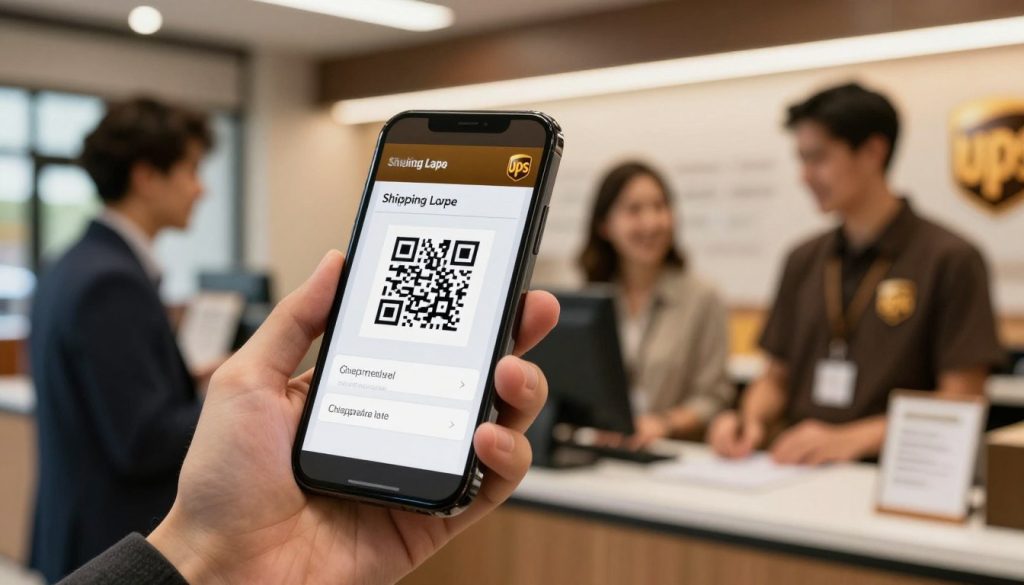
This is the moment where UPS QR code label printing comes into play. On the UPS website, look for the option that says “Email QR Code” or “QR Code delivery method.” This button is your key to modern, flexible shipping. When you select this option instead of a standard PDF download, the label and UPS QR code get sent straight to your email or mobile phone. This feature lets you print your UPS QR code label from any printer anywhere, anytime.
Click the confirm button once you’ve made your selection. Your screen will show a confirmation message with your tracking number.
Confirming Payment Information
Payment happens right away when you create your label. You can pay using:
- Credit card (Visa, Mastercard, or American Express)
- PayPal account
- Your existing UPS account balance
Select your preferred payment method and verify the amount. UPS charges the shipping cost immediately, which means your label is prepaid. That’s why printing at UPS locations is free for you.
After payment goes through, save your confirmation email right away. This email contains your tracking number and UPS QR code label printing information. You’ll need it to track your shipment and prove that postage is paid.
Printing Your UPS Shipping Label
You’ve done all the hard work. Now, it’s time to print your label. You don’t have to worry about printer settings. Just scan your QR code at a UPS location, and they’ll make a label for you.
UPS has many places to print your label. You can go to over 5,000 UPS Store locations. Or, you can visit 40,000 UPS Access Points, or some CVS pharmacies and Michaels craft stores. It’s easy to find a place near you.
Selecting the Right Printer Settings
UPS uses thermal printers for labels. These printers make labels that are clear and strong. You don’t need to set anything up.
When you scan your QR code, the system makes the label right. You just show your phone, and it scans it. Many places have kiosks for you to use, or you can ask for help.
Best Practices for Label Printing
Here are some tips to make printing easy:
- Have your QR code ready on your phone with the screen brightness turned up for easy scanning
- Visit during non-peak hours for faster service and minimal wait times
- Verify all information on your printed label before leaving the location
- Know that reprinting is available at no cost if any errors occur
- Keep your receipt for your records and tracking reference
Your UPS shipping label is now ready. The thermal printing makes sure it stays readable. Your package’s information is safe.
Attaching the Label to Your Package
After printing your UPS mobile shipping label, it’s time to attach it to your package. This step is very important. It helps your package move smoothly through the delivery system.
Your label has important info that UPS scanners read at each stop. If it’s placed and protected right, your package will reach its destination on time.
Placement Tips for Maximum Visibility
Where you put your label is very important. It should go on the biggest, flattest area of your package. Make sure this area is clean and smooth before attaching the label.
- Put the label on the top or side of your box, not on edges or seams
- Keep it away from tape, stickers, and old shipping info
- The barcode must be visible and not folded or creased
- Place it where handles or straps won’t cover it
- Avoid corners where it might bend or get damaged
When your label is in the right spot, UPS scanners can read it fast. This keeps your package on schedule.
Ensuring Label Durability
Your label must last the whole trip. UPS makes strong labels, but you help keep them safe.
- Put clear packing tape over the label for protection
- Use enough tape to keep it firm without glare
- Make sure the label is flat against the package
- Check that it’s moisture-resistant
- Avoid too much tape that hides the barcode
A well-attached UPS mobile shipping label stays clear from start to finish. Taking a few minutes to do this right stops scanning mistakes. It keeps your package on track.
Tracking Your Shipment
After you drop off your package, you’ll want to keep tabs on its journey. The UPS paperless label system makes monitoring your shipment simple and convenient. Your tracking information stays linked to your account through the QR code, and you’ll get regular updates via email or through your UPS account. Let’s explore how to track your package and understand what each update means.
How to Track with UPS
Finding your tracking number is easy. Look in your confirmation email where your UPS paperless label QR code was sent. This tracking number identifies your specific package in the UPS network.
You can track your shipment using several methods:
- Visit the UPS website and enter your tracking number in the search box
- Use the official UPS mobile app for on-the-go tracking
- Set up email or text notifications for real-time updates
- Use the “Track by Reference” feature if you assigned a reference number to your package
The UPS paperless label provides the same complete tracking capabilities as traditional labels. All your shipping information stays stored digitally in your account, giving you instant access whenever you need it.
Understanding Tracking Updates
Different tracking statuses tell you where your package is in its journey. Here’s what each one means:
| Tracking Status | What It Means | What To Expect |
|---|---|---|
| Label Created | Your UPS paperless label QR code was scanned and the label printed | Package ready for pickup |
| Picked Up | UPS collected your package from the drop-off location | Package entered the delivery network |
| In Transit | Your package is moving through UPS facilities and vehicles | Package is on its way to the destination |
| Out for Delivery | The delivery driver has your package on the truck | Package arriving today |
| Delivered | Package reached its destination safely | Signature confirmation if required |
If your tracking information hasn’t updated within 24 hours, don’t worry. Sometimes updates take a bit longer to appear in the system. Contact UPS customer service with your tracking number if you have concerns about your shipment. They can provide detailed information and help answer any questions about your package’s status.
Troubleshooting Common Issues
Shipping problems can happen, but most are easy to fix. We’ll cover common issues when printing a UPS label without a printer. Knowing how to solve these problems will help you relax.
What to Do If You Don’t Receive Your Label
Maybe your QR code didn’t show up in your email. First, check your spam folder. Sometimes, emails from UPS get sent there by mistake.
If it’s not there, log into your UPS account. Your shipping history has all your QR codes. You can print your label at a nearby UPS location. Your QR code is good for 14 days.
Make sure you typed your email address correctly. A small mistake can send your code to the wrong place. If you think the QR code was lost, contact UPS customer service. They can help you get a new one.
Fixing Errors on Your Shipping Label
Mistakes can happen, but you can fix them. The best way is to check everything before you pay. Look at the sender and recipient addresses, package weight, and service type.
If you find an error after creating your label, you might need to start over. Call UPS customer service with your tracking number. They can help you cancel the old label. UPS staff can also help with corrections when you print at a location.
Weight mistakes are common. UPS will adjust your charges when they weigh your package. Address errors need quick action. Call UPS customer service with your tracking number. They can fix it if the package hasn’t shipped yet.