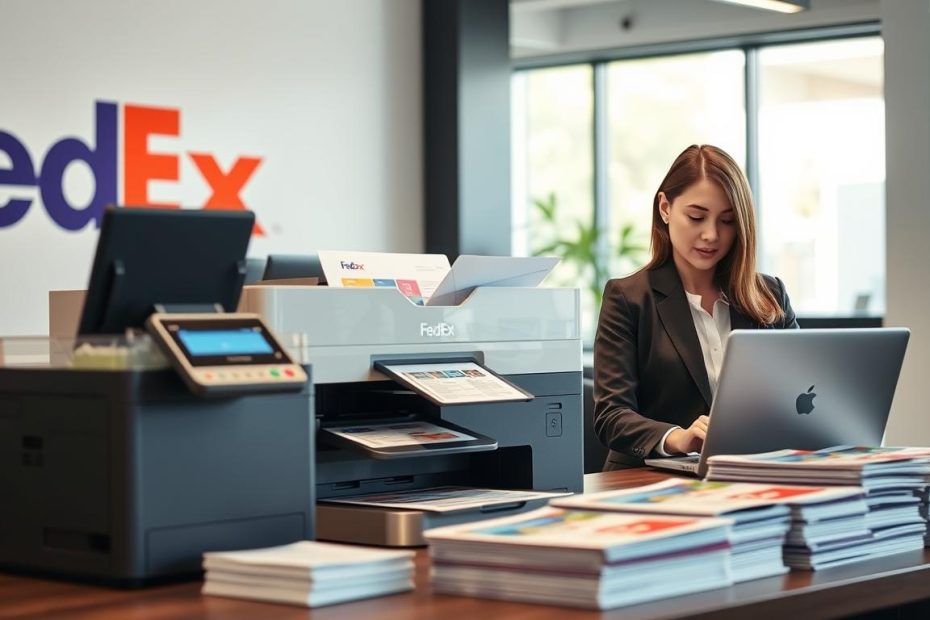
Ever wondered how to turn your digital documents into crisp, professional prints? You can do it without leaving your home or office. Printing at FedEx from email might be the solution you’ve been looking for.
FedEx Office has made printing easy and convenient. It’s great for busy professionals, students, or anyone needing quick prints. Learning how to print at FedEx from email can save you time and hassle.
This guide will show you how to print your documents from your email. You’ll see how easy it is to send your files. Then, pick them up at a nearby FedEx location.
Key Takeaways
- Print documents from your email quickly and efficiently
- Access FedEx printing services with minimal effort
- Choose from multiple printing options and settings
- Save time by avoiding traditional printing methods
- Easily manage your print jobs online or in-store
Understanding FedEx Print Services
FedEx print services have many options for your document needs. They help both small business owners and students with important presentations. You can print online with FedEx Office, making it easy and convenient.
FedEx offers two main printing ways:
- Full-Service Printing: A team helps with big projects
- Self-Service Printing: You can print, copy, and scan by yourself
Exploring Print Options
At FedEx Office, you’ll find many printing services. They make preparing documents easy. You can:
- Print documents
- Make color and black-and-white copies
- Print big things
- Scan and change digital files
- Get professional binding
Why Select FedEx for Your Printing Needs
Choosing FedEx means getting high-quality prints easily. They have many locations, top equipment, and services. You can print online with FedEx Office, saving time and getting great results.
FedEx has solutions for all your printing needs. Whether it’s a small project or a big presentation, they’ve got you covered.
Preparing Your Document for Printing
Getting your document ready for printing at FedEx needs some careful steps. Knowing the right file formats and how to format is key for great print quality.
FedEx accepts many document file formats for easy printing. Here are the main file types to consider:
- PDF – The best format for keeping your document’s look the same
- Microsoft Word documents
- Excel spreadsheets
- PowerPoint presentations
- JPEG and PNG image files
Essential File Format Tips
PDF printing is top for keeping your document’s layout perfect. Here are some tips for formatting your documents:
- Use standard one-inch margins to avoid text cutoff
- Choose embedded or common fonts for consistent look
- Make sure images are high-resolution (at least 300 DPI)
- Check page orientation (portrait or landscape)
- Proofread for any formatting or spelling mistakes
Microsoft Word Printing Recommendations
If you’re using Microsoft Word, make sure to take extra steps for perfect printing. Check that fonts are compatible, simplify complex layouts, and change special characters. This ensures they print right at FedEx.
Accessing Your Email for Printing
Printing documents from your email is now easy with FedEx mobile printing. You can turn your smartphone into a powerful printer. This gives you flexibility and convenience when you need hard copies.
The FedEx print from smartphone process makes printing simple. It offers many ways to access and print your files fast.
Finding Email Documents for Printing
Finding documents in your email is easy. Just follow these steps:
- Open your email app on your phone or computer
- Go to the email with your document
- Look for attachments or files
- Make sure the file type works with FedEx printing
Utilizing the FedEx Office Mobile App
The FedEx Print and Go service makes printing easy with its mobile app. This app lets you print from:
- Email attachments
- Cloud storage
- Your device
- USB drives
| Printing Method | Convenience Level | Supported Devices |
|---|---|---|
| Email Attachments | High | Smartphones, Tablets, Computers |
| Cloud Storage | Very High | Multiple Platforms |
| USB Drive | Medium | In-Store Printers |
With the FedEx Office Mobile App, you get a special code. This code lets you print at any FedEx location. This means you can get ready to print anywhere and finish it when you want.
Sending Documents to FedEx for Printing
Printing your documents at FedEx is super easy. You can send your files by email and pick them up at a spot that’s easy for you. This makes printing documents simple for work or personal stuff.
- Find the FedEx Print & Go email address
- Get your document ready as an email attachment
- Add any special printing instructions
- Send the email with your files
Forwarding Emails with Attachments
Printing attachments at FedEx is easy. Just open the email with your document, hit the forward button, and send it to FedEx Office’s email. You can send many attachments in one email, which is great for different printing needs.
Using the FedEx Print by Email Feature
The FedEx Kinkos email printing feature is very convenient. After you send your email, you’ll get a special retrieval code. This code lets you print your documents at any FedEx Office place using their self-service machines.
Pro tip: Even though you don’t need a FedEx login, making an account makes managing your print jobs easier and saves time for future prints.
Choosing Your Print Settings
Printing at FedEx gives you many options to make your documents look just right. Knowing about print settings helps you make things look professional and save money too.
Choosing the right print settings is key to a successful print job. FedEx offers many paper sizes and quality options to fit your needs.
Selecting Paper Size and Type
At FedEx, you can pick from different paper sizes:
- Standard letter size (8.5″ x 11″) – included at no extra cost
- Legal size (8.5″ x 14″)
- Tabloid size (11″ x 17″)
- Custom sizes for special projects
Self-service printers have standard paper. For special papers like card stock or glossy, you can buy them from FedEx team members.
Adjusting Print Quality and Color Options
| Print Setting | Best Use | Cost Consideration |
|---|---|---|
| Black and White | Text documents, drafts, internal memos | Most economical |
| Color Printing | Presentations, marketing materials, photos | Higher cost |
Print quality settings include:
- Draft mode: Fastest, uses least ink
- Standard mode: Good balance of quality and speed
- High-quality mode: Best for professional prints
Use the self-service printer’s touchscreen to access these settings. Pick what works best for your document and budget for top-notch results.
Locating a FedEx Printing Center Near You
Finding a FedEx office is easy. You can get printing or send a package fast. Knowing how to find FedEx stores saves time and stress.
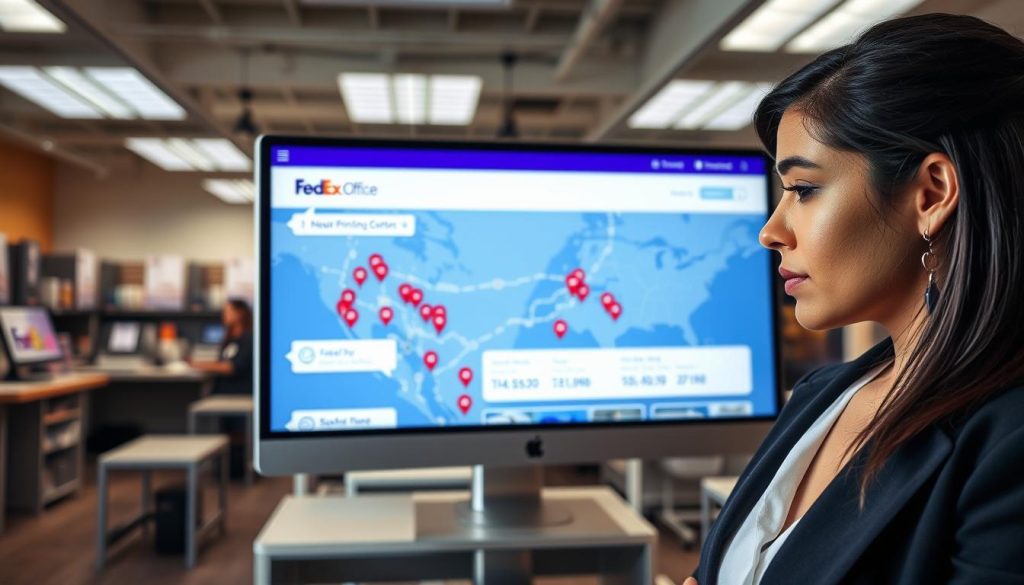
The FedEx printing center locator helps find nearby places easily. You can find FedEx near you in several ways:
- Visit the official FedEx website
- Use the FedEx mobile app
- Google Maps search for “FedEx office locations”
- Call FedEx customer service
Using the Location Finder Tool
To find a FedEx store near you, follow these steps:
- Open fedex.com or the mobile app
- Click on the “Find a Location” feature
- Enter your ZIP code or current address
- Browse available nearby locations
Checking FedEx Store Hours
Knowing FedEx store hours is key for planning. Most places are open during business hours. But, some have longer hours. Always check current hours before you go, as they can change.
Pro tip: Use the location finder to check store hours and services. This makes your visit smooth at your local FedEx printing center.
Reviewing Your Print Job
Printing important documents needs careful attention. Before you print, reviewing your job can save time and money. FedEx offers tools to preview your print settings and make sure your document looks right.
At FedEx self-service stations, you can review your document before printing. The touchscreen lets you see everything clearly. This way, you can spot problems before they cost you a lot.
How to Confirm Your Document’s Appearance
When confirming your print job, check a few things:
- Page count and order
- Text positioning and margins
- Image quality and placement
- Headers and footers
- Page orientation
Making Last-Minute Adjustments
Checking your print settings lets you make important changes. You can change:
- Number of copies
- Color or black-and-white printing
- Paper size
- Print quality
Important: Most orders start production in 15 minutes. So, act fast if you see any problems. After production starts, you can’t make changes.
| Review Step | Action |
|---|---|
| Preview Document | Use touchscreen interface |
| Check Settings | Verify all print parameters |
| Final Confirmation | Proceed or make adjustments |
Spending an extra minute reviewing your document can save you from reprints. It ensures your documents look professional every time.
Picking Up Your Printed Documents
Ready to get your prints from FedEx? FedEx Office makes it easy. They offer many ways to get your documents fast and simple.
Before you go, check what you need. Your retrieval code is key for picking up your prints.
Essential Items to Bring
- Retrieval code from your confirmation email
- Smartphone (for easy access to confirmation)
- Valid payment method
- Folder or bag for document protection
Understanding Payment Options
FedEx Office has many ways to pay. You can use:
- Credit cards:
- American Express
- VISA
- MasterCard
- Discover
- FedEx Office printing account
- Self-service payment at printing kiosks
For self-service, just enter your code at the screen. Then, review and pay for your prints. At counters, show your confirmation number to the team.
Pro tip: Always keep your confirmation email as a backup receipt for your records.
Additional Services at FedEx
FedEx Office does more than just print documents. They offer many professional printing services. These services can make your documents look great and professional.
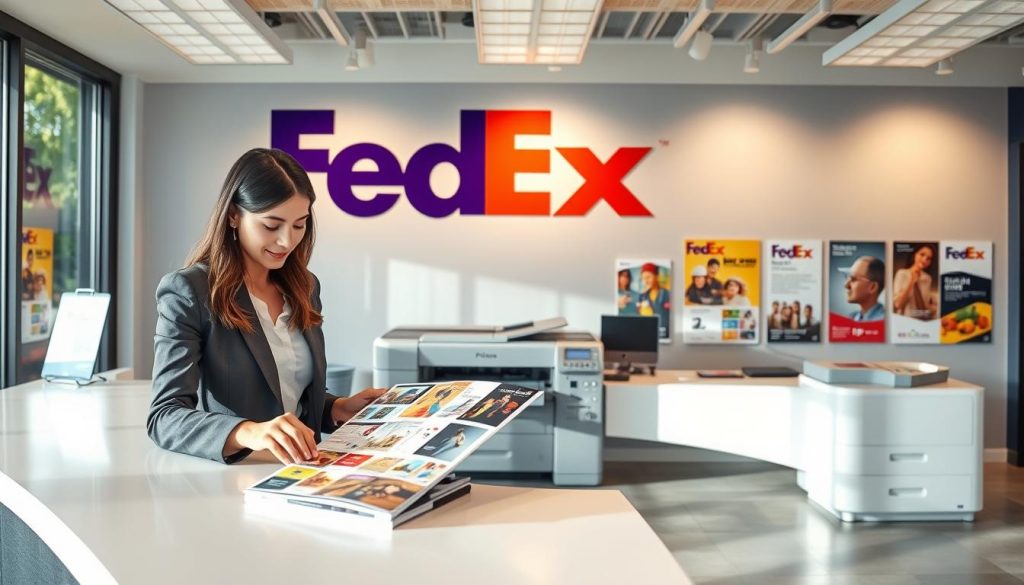
Comprehensive Binding and Finishing Solutions
FedEx has many binding services to make your documents better:
- Comb Binding: Great for manuals and reports
- Coil Binding: Best for notebooks and presentations
- Saddle-Stitching: Good for booklets and brochures
- Thermal Binding: Makes documents look like hardcovers
- Three-Hole Punching: Easy for storing in binders
Custom Printing Services to Meet Your Needs
Custom printing at FedEx can make your ideas come to life:
- Large-Format Printing: For posters, banners, and blueprints
- Specialty Material Printing
- Professional Design Assistance
- Variable Data Printing for Personalized Materials
Keep in mind, not all FedEx Office locations offer the same services. Always check with your local store to confirm availability for your specific project needs.
Common Issues and Troubleshooting
Printing documents at FedEx can sometimes present unexpected challenges. Knowing how to fix fedex printing problems can save you time and frustration. This guide will help you solve common printing and email attachment issues quickly and efficiently.
When you encounter troubleshooting print issues, start by identifying the specific problem with your print job. Several common scenarios can disrupt your printing experience:
- Document file format incompatibility
- Incorrect retrieval code
- Internet connectivity problems
- Payment processing errors
Resolving Document Print Failures
If your print job is not working, follow these strategic steps to diagnose and resolve the issue:
- Verify your retrieval code character by character
- Check document format compatibility
- Confirm complete file upload
- Validate payment processing
Solving Email Attachment Errors
Email attachment errors can be frustrating. Here are key strategies to overcome common upload challenges:
| Issue | Solution |
|---|---|
| Large file size | Compress file or use cloud storage link |
| Unsupported format | Convert to universal PDF |
| Upload interruption | Re-upload document |
When all else fails, contact FedEx customer support at 1.800.GoFedEx (1.800.463.3339). Their technical support team can help resolve complex printing challenges and ensure your documents are printed successfully.
Pro Tip: Always keep your browser updated and use supported browsers like Microsoft Edge, Firefox, Chrome, or Safari to minimize technical complications.
Tips for a Smooth Printing Experience
Printing at FedEx can be easy with the right planning. It doesn’t matter if you’re a student, worker, or small business owner. Learning how to print efficiently will save you time and reduce stress.
Getting ready for printing is key. How you organize your print files can make a big difference. It can make your FedEx printing experience better.
Planning Ahead for Last-Minute Prints
When you need to print something fast, planning is important. Here are some tips for FedEx printing to help with last-minute jobs:
- Submit print orders before noon CST for same-day pickup
- Prepare documents in PDF format to prevent formatting issues
- Use self-service printers for quick, simple document printing
- Check production time estimates for complex print jobs
Keeping Your Files Organized
Smart file management is the first step to efficient printing. Create a system that makes printing easy:
- Create dedicated folders for frequently printed documents
- Use clear, descriptive file names
- Utilize cloud storage services like Google Drive or Dropbox
- Sign in to your FedEx account to track past orders
By using these tips, you can make your printing experience better. A little planning can make printing at FedEx smooth and stress-free.
Conclusion: Enjoy Effortless Printing at FedEx
Printing from email is now super easy with FedEx Office. You’ve learned a simple way to manage documents. Now, professional printing is just a few clicks away, no matter where you are.
Exploring easy printing at FedEx is more than just clicking ‘print’. You’ve found a solution for all your printing needs. FedEx Office helps you get top-quality results for work or personal projects.
Key Steps to Remember
Remember the main steps: get your document ready, check your email, pick the document, use Print & Go, choose a location, and finish your print job. This way, printing is easy and fits your busy life.
Expanding Your Printing Horizons
FedEx Office does more than just print. Check out their services like binding, large-format printing, scanning, and shipping. These services are great for students, professionals, and entrepreneurs. They make your document needs easy and high-quality.