
Did you know scanning a simple QR code at a UPS location can save you time? It means you don’t have to print labels at home. This easy feature changes how you ship packages and manage your supplies.
Shipping packages doesn’t have to be hard. When you know how to order UPS supplies, you control your costs and shipping time. UPS gives you free shipping supplies like labels, stickers, boxes, and envelopes. They arrive at your door in a few business days.
Learning to order UPS supplies lets you manage your shipping better. It’s great for small businesses, regular shippers, or anyone needing reliable packaging. You’ll find out how to get both free and paid supplies that meet your needs.
This guide shows you how to do it all. You’ll learn to make a QR code label, find a UPS location, scan your code, and print your label. By the end, you’ll be confident in handling your shipping needs easily and efficiently.
Key Takeaways
- UPS offers free shipping supplies including labels, boxes, and envelopes delivered to your address
- QR code labels let you print shipping labels directly at any UPS location without advance preparation
- The UPS supply ordering process takes just a few steps through their website or retail stores
- Supplies ordered online arrive within several business days, ready for immediate use
- Understanding how to order supplies from UPS saves money and streamlines your shipping operations
- You can access both free and paid shipping materials based on your business requirements
What is a UPS QR Code Label?
A UPS QR code label is a new way to ship packages. You don’t print labels at home. Instead, you make a digital code on your phone or computer.
This code lets you print your label at any UPS place. It makes shipping easier without needing a printer at home.
When you buy UPS shipping supplies, you get cool tools. These tools work well with QR codes. Many people like it because it’s easier than printing labels the old way.
Understanding UPS QR Codes
QR codes are like digital shortcuts for your shipping info. When you make a QR code label on the UPS website or app, it has all your package details. A UPS person just scans it, and your label prints right away.
This method cuts down on printing mistakes and saves time. You don’t need to buy printer ink or paper. It’s great for people who are always on the move.
Benefits of Using QR Codes for Labels
QR codes for UPS labels have many good points:
- No home printer needed, saving ink and maintenance costs
- Create shipping labels on the go from your mobile device
- Reduces risk of smudged or damaged labels
- Faster processing at UPS locations
- Environmentally friendly alternative to home printing
When you order UPS shipping supplies, they work with both printed labels and QR codes. You also get free supplies like pouches and packaging. This mix lets you manage your shipments well and efficiently.
How to Generate a UPS QR Code Label
Making a UPS QR code label is easy and fast. You don’t need special tools or know-how. Just have the right info and follow the steps. It’s great for both new and regular shippers.
Step-by-Step Guide to Create a QR Code Label
First, log into your UPS account on the UPS website or app. If you’re new, create an account. Then, find “Create a Shipment” to start.
Next, enter the recipient’s address carefully. Include their name, street, city, state, and ZIP. Then, add your return address. Don’t forget the package’s weight and size.
Choose your shipping service level next. Pick the QR code option for your label. Your unique QR code will be ready.
When ordering UPS supplies, think about adding clear pouches. They protect your QR code and shipping documents.
Required Information for QR Code Generation
Get all your details ready before starting. You’ll need:
- Recipient’s complete mailing address
- Your return address
- Package weight in pounds
- Package dimensions in inches
- Desired shipping service level
- Your UPS account login credentials
| Information Type | Details Required | Example |
|---|---|---|
| Recipient Address | Full name, street, city, state, ZIP | Jane Smith, 456 Oak Lane, Denver, CO 80202 |
| Return Address | Your complete address | Your Business, 123 Main St, Portland, OR 97201 |
| Package Weight | Total weight in pounds | 5.5 lbs |
| Package Dimensions | Length x Width x Height in inches | 12 x 8 x 6 inches |
| Shipping Service | Select appropriate speed level | UPS Ground, UPS 2nd Day Air |
Ordering UPS supplies online gets you everything you need. This includes boxes, tape, and padding. Quality supplies help your packages arrive safely.
Your UPS account makes shipping easy. Save your QR code on your phone or print it. Either way, you can scan and print at any UPS location.
Finding a Suitable UPS Location
To get your QR code label printed, you need to visit a UPS location. First, find a store near you. UPS has many types of stores, each with different services. Knowing what each offers helps you pick the right one.
Finding UPS Stores Near You
Use the store locator on UPS.com or the UPS app to find stores. Just type in your zip code or let it use your location. You’ll see three types of locations:
- UPS Stores – offer full services like label printing and packing help
- UPS Access Points – have basic drop-off services at select retailers
- UPS Customer Centers – provide full-service for businesses and individuals
UPS Stores give you the most services. You can scan your QR code, print your label, and get packaging materials all in one place. They have experts ready to help with your shipping. If you need packaging materials right away, go to a UPS Store.
Checking Store Hours
Store hours change by location. Most UPS Stores open at 8 AM weekdays and close between 6 PM and 7 PM. On weekends, they usually close by 5 PM on Saturdays and are closed on Sundays.
| Location Type | Typical Weekday Hours | Saturday Hours | Services Available |
|---|---|---|---|
| UPS Store | 8:00 AM – 7:00 PM | 10:00 AM – 5:00 PM | QR scanning, label printing, packing help, request UPS packaging materials |
| UPS Access Point | Varies by retailer | Varies by retailer | Package drop-off, basic services |
| UPS Customer Center | 8:00 AM – 6:00 PM | 9:00 AM – 3:00 PM | Full services, shipping supplies, label printing |
Check store hours online before you go. Holiday hours are different, so check those too. Calling ahead is a good idea if you need special supplies or services. Many store managers have basic materials ready and can help you get what you need right away.
Preparing Your Package for Shipping
Getting your package ready for shipping is very important. It keeps your items safe and makes sure they get to where they need to go. When you get UPS packaging supplies delivered to your home, you have everything you need to pack well.
Spending time to pack right can make a big difference. It can mean the difference between your package arriving safely or getting damaged.
Packaging Guidelines
First, pick the right box size from your UPS supplies. You’ll get boxes of different sizes for different weights and sizes of items. The biggest free box is 18 x 13 x 3 inches and can hold up to 30 pounds.
Choose a box that fits your item well but also has room for padding.
Cushioning is key for safe shipping. Put your item in the box’s center and add padding on all sides. Use bubble wrap, packing paper, or foam peanuts for padding. For fragile items, use the “Fragile” stickers you got with your supplies.
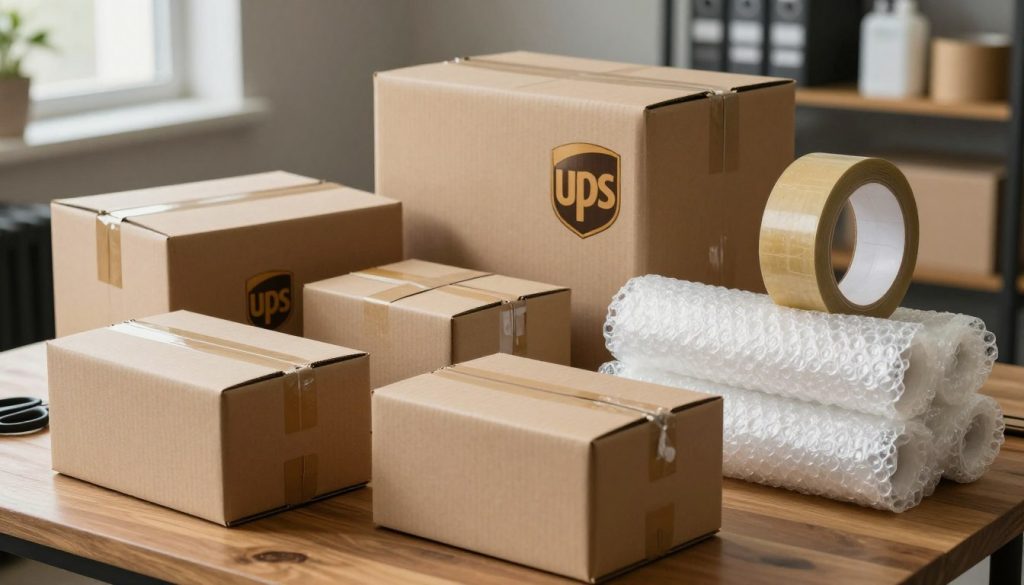
Pack items tightly to prevent movement. Use strong packing tape to seal all seams. Don’t leave empty spaces in the box, as they can cause damage.
Required Shipping Documents
Shipments need different documents. Domestic packages usually just need a shipping label. But international shipments need more for customs clearance.
| Shipment Type | Required Documents | Placement |
|---|---|---|
| Domestic Delivery | Shipping label only | Center of package top |
| International Shipment | Customs declaration form, commercial invoice, air waybill | Clear plastic pouch on package exterior |
| Fragile Items | Shipping label plus fragile stickers | Label on top, stickers on all sides |
Use the clear plastic pouches from your UPS supplies to attach documents to the package. These pouches keep documents dry and visible. Place them where they won’t block barcode scans.
- Attach the shipping label to the largest, flattest surface
- Place international documents in protective pouches
- Keep documents away from package edges
- Ensure barcodes are fully visible and not covered
- Use waterproof tape for outdoor shipments
Using quality UPS packaging supplies ensures your package arrives safely and on time. Your careful preparation helps avoid problems later.
Scanning the QR Code at UPS
When you get to your local UPS, you’re ready to scan your QR code. UPS makes it easy and quick. Scanning your code takes just seconds, and all your shipping details pop up right away.
Whether you ordered online or used the QR code for the first time, it works well at any UPS Store.
Scanning Options You Can Use
UPS gives you choices for scanning your code. The UPS Store offers several ways to scan:
- Use the self-service kiosk in the store to scan your QR code yourself
- Show your QR code on your mobile device to a store associate
- Present a printed copy of your QR code for an associate to scan
- Ask for help from certified packing experts if you need it
When you order UPS labels and envelopes online, you get high-quality labels fast. The kiosks are like self-checkout systems you know from stores.
What to Expect After Scanning
Scanning takes less than 30 seconds. Your shipment info shows up right away, and your label prints quickly. A UPS Store associate will put the label on your package, or you can do it yourself.
You’ll get a receipt with your tracking number soon after.
| Timeline Step | Duration | What Happens |
|---|---|---|
| Scanning QR Code | 5-10 seconds | System retrieves your shipment information |
| Label Printing | 10-20 seconds | Professional label prints from the system |
| Label Application | 2-5 minutes | Associate applies label or you attach it yourself |
| Receipt Generation | 5 seconds | Tracking number receipt prints for your records |
| Total Process | Less than 5 minutes | Complete from start to finish |
If you ordered UPS labels and envelopes online, you know what they look like. The QR code method prints the same professional labels. Keep your receipt safe because it has your tracking number.
Printing the Label from a QR Code
After scanning your QR code at a UPS location, printing is quick and easy. Your info goes straight to special machines for labels. It all takes seconds, and you get a label ready to use.
When you ask for UPS business supplies for home use, you get different stuff. Knowing the difference helps you pick the right option for your needs.
Printer Options Available at UPS
UPS has commercial-grade thermal printers for top-notch labels. These machines make labels that last, even in bad weather. They use heat to print, unlike home printers.
In-store printing has big benefits:
- Labels that don’t get ruined by rain or extreme weather
- Labels that don’t smudge, even when wet
- Barcodes that scanners can read easily
- Labels that stick well to different surfaces
Your label prints right away after scanning. No waiting or fuss needed.
Tips for Clear Printing
For the best QR code prints, follow a few tips. First, make sure your phone screen is full brightness when scanning. Dark screens can mess up the scan.
| Printing Situation | Best Practice |
|---|---|
| Digital QR Code on Phone | Increase screen brightness to maximum before scanning |
| Printed QR Code on Paper | Keep the paper flat and free from wrinkles or creases |
| QR Code Placement | Position code directly in front of scanner without tilting |
| Label Application | Place on clean, dry package surface for best adhesion |
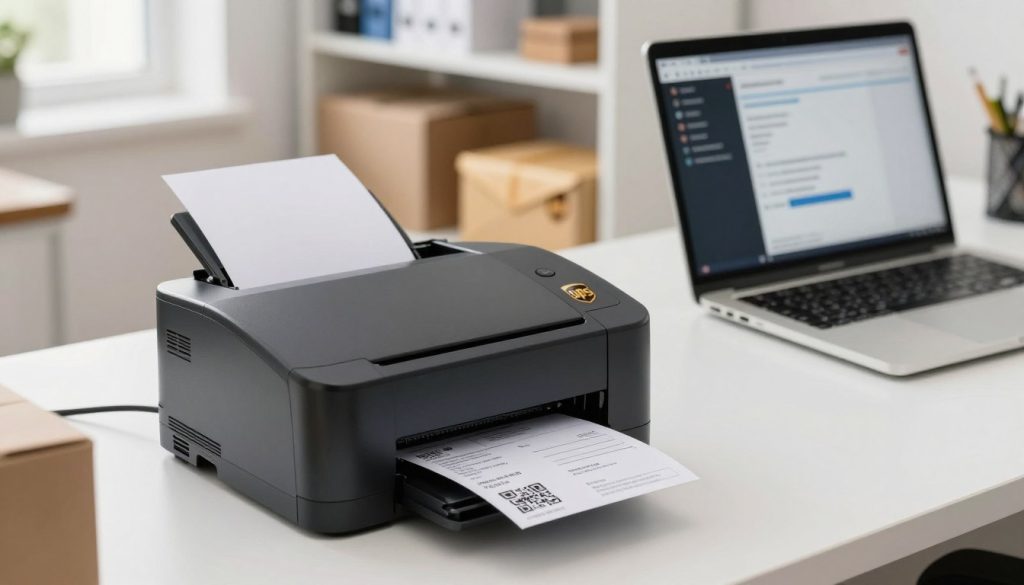
When putting your label on, use a clean, dry spot for best stick. The adhesive works great and stays strong during shipping. Home printing might not match the quality of in-store thermal printing.
By following these tips, your label will print well and stay clear until it’s delivered.
Handling Issues with QR Codes
Even though the QPS QR code system works well for most shipments, you might run into problems when printing your label. These issues can range from scanning troubles to UPS account issues that prevent you from accessing the service. The good news is that most problems have simple solutions you can try right away.
Common Problems and Solutions
QR codes fail to scan for several reasons. Your phone screen might have too much glare, or the code itself could be damaged or expired. QR codes typically stay valid for 24 hours, so generating a new one often fixes the problem.
When troubleshooting UPS shipping supplies troubleshooting, start with these quick fixes:
- Increase your phone’s brightness to the maximum level
- Clean your phone screen to remove dirt and fingerprints
- Make sure printed QR codes aren’t wrinkled or folded
- Regenerate your QR code through your UPS account
- Try scanning from a different angle or distance
If your QR code won’t scan at the UPS location, ask a store associate for help. They can manually enter your tracking information as an alternative option.
Some shippers face UPS account issues when ordering supplies or accessing their account. Your account might be flagged if it doesn’t meet minimum shipping volume requirements. This situation is common for notaries and third-party shippers.
Contacting UPS Support
When you experience UPS account issues, call UPS customer service at 1-800-742-5877. Tell the representative that you work as a third-party shipper and that you process packages using labels provided by others, like title companies or clients.
This simple explanation usually removes account restrictions. You’ll regain access to free supplies and shipping services right away. The UPS support team understands these situations and can resolve them quickly once you explain your shipping situation.
| Issue Type | Quick Fix | Contact Support |
|---|---|---|
| QR code won’t scan | Clean screen, increase brightness, regenerate code | Ask UPS associate for manual entry |
| Expired QR code | Generate new code (valid 24 hours) | Not usually necessary |
| Account supply restrictions | Identify as third-party shipper | Call 1-800-742-5877 |
| System error at location | Try again in a few minutes | Ask store associate for assistance |
Don’t hesitate to reach out for help when you need it. UPS staff members are trained to solve these problems and want your shipping experience to go smoothly.
Cost Considerations for Printing
Printing a UPS label from a QR code at a UPS location is easy. You don’t pay for the printing. The only cost is the shipping you chose when making your label. This is cheaper than buying a printer and supplies.
It’s key to know what you’re paying for. UPS shipping costs cover your package’s transport. Free UPS supplies make it more affordable.
Understanding UPS Printing Fees
Basic label printing at UPS is free. You get standard shipping labels, boxes, pouches, and envelopes for free. But, the biggest free box is 18 x 13 x 3 inches.
Custom branded packaging costs extra. Oversized boxes also cost more. Some UPS locations charge $3 to $15 for packing services.
- Standard label printing: Free
- Basic boxes and pouches: Free
- Custom branded packaging: Additional cost
- Oversized boxes: Additional cost
- Professional packing services: $3–$15
Payment Options Available
You can pay for UPS shipping and supplies in many ways. UPS accepts credit cards, debit cards, and cash. Setting up a UPS account makes shipping easier. Just use your account number for billing later.
| Payment Method | Benefits |
|---|---|
| Credit Card | Immediate payment, rewards accumulation |
| Debit Card | Direct bank access, controlled spending |
| Cash | No account needed, straightforward transaction |
| UPS Account Billing | Consolidated billing, streamlined checkout |
Plan your UPS shipping costs to budget better. Use free UPS supplies to save money.
Tracking Your Package After Label Printing
After you print your QR code label, tracking your package is easy. Your receipt has a special number called a tracking number. This number lets you follow your package’s journey.
How to Track Your Shipment
Your tracking number is your key to seeing where your package is. Go to UPS.com and type in your tracking number. You’ll see where your package is at every step.
Track your shipment at these key points:
- Package pickup from the UPS location
- Entry into the UPS sorting system
- Transit through regional facilities
- Out for delivery status
- Successful delivery confirmation
Keep your tracking number safe for 30 days after delivery. You’ll need it if you need to report a lost or damaged package.
Using the UPS Mobile App
The UPS mobile app lets you track your package in real-time. Download it to get updates on your phone.
| Feature | Benefit |
|---|---|
| Push Notifications | Receive instant updates about your package status |
| Delivery Instructions | Change delivery preferences if you won’t be home |
| Redirect Packages | Reroute packages to UPS Access Point locations |
| Delivery Photos | View pictures showing exactly where your package was left |
| Email & Text Alerts | Get tracking alerts through your preferred communication method |
The UPS mobile app makes tracking easy. Set up alerts to get updates without checking constantly. This saves you time.
Pro tip: Save your tracking number in your phone’s notes or email it to yourself. This makes it easy to contact UPS or file a claim if needed.
Additional Shipping Services Offered by UPS
After printing your QR code label, you’ll see UPS has more than just basic label printing. The UPS Store has a wide range of shipping solutions for you. Whether you ship alone or have a growing business, knowing about these services can save you time and money.
Exploring Additional Services
UPS packing services are very helpful. If you’re not sure how to pack, UPS experts can help. They know how to protect your items well.
UPS also offers special packaging for hazardous materials. They have trained staff who know the rules. Plus, they make returns easy with prepaid labels.
- Signature confirmation for valuable shipments
- Insurance coverage beyond standard protection
- Saturday and Sunday delivery for time-sensitive items
- International shipping with customs assistance
Benefits of Choosing UPS for Your Shipping Needs
UPS has a big network of over 5,000 locations in the U.S. You get reliable tracking and good rates. Businesses get discounts and help from account reps.
UPS also gives you free supplies. This makes them a economical choice for your shipping needs.
Conclusion: Simplifying Your Shipping Experience
You now know how to use UPS QR code label printing for easy shipping. This method avoids the trouble of home printers and expensive ink. You get top-quality labels and free packaging materials at your local UPS.
Recap of the QR Code Process
The steps are simple. First, create or log into your UPS account online or on your phone. Then, order your free supplies online. Make sure to say you’re a third-party shipper if that’s you.
After that, make a QR code label for your package on the UPS site. Find a UPS Store or access point near you. Bring your package and QR code there.
A staff member will scan your code, and your label will print. You can then track your package with your tracking number. This whole process is quick, whether you ship a little or a lot.
Encouragement to Try Out UPS QR Label Printing
The QR code system is a smart way to ship today. It uses your phone, saves paper, and is eco-friendly. When you order supplies from UPS, you get boxes, pouches, and envelopes for free.
This makes shipping cheaper for small businesses and individuals. Order your free supplies today. Easyship gives you discounted UPS rates and lets you link your account for more savings.
Small businesses can save money with free supplies and lower rates. If you have account problems, calling UPS customer service is fast. Just mention you’re a third-party shipper. Try UPS shipping solutions now and see how they change your package sending.