Ever wondered how to make shipping easier with your phone? The FedEx mobile app QR label has changed how we send packages. It makes shipping simple and digital.
Shipping is now easy, without paper or trips to the post office. With your phone, you can make a shipping label. The FedEx app gives you tools to ship fast and easy.
This guide will show you how to make a digital shipping label. You’ll learn from downloading the app to getting your QR code. It’s great for anyone, big or small, who ships packages.
Key Takeaways
- Discover the convenience of digital shipping labels
- Learn to use the FedEx mobile app for quick label generation
- Understand how QR codes simplify package shipping
- Save time with mobile-first shipping solutions
- Eliminate traditional printing and paperwork
Understanding QR Codes and FedEx Shipping Labels
Digital tech is changing how we ship things. QR codes are a big step up in making shipping easier and faster. The FedEx label QR code is a big part of this change.
QR codes have made shipping documents easier to handle. They make the process smoother and more open than before. Let’s dive into the world of these digital markers and their big role in shipping.
What is a QR Code?
A QR code is a special barcode that holds lots of info in a small square. It lets you share complex data fast by scanning it. Scanning a FedEx label QR code gives you all the shipping details right away.
- Compact digital information storage
- Instantly readable by smartphones
- Stores shipping details securely
Importance of Using QR Codes for Shipping
QR codes bring many benefits to shipping. Scanning a FedEx QR code cuts down on many old problems:
- Less paper waste
- Quicker package handling
- Less chance of mistakes
- Better tracking
How QR Codes Work with FedEx
FedEx has made QR codes a key part of its shipping system. Each QR code has special info about a package. This info can be read quickly at drop-off spots or during transport. It makes shipping faster and easier for everyone.
By using QR codes, FedEx gives customers a modern, easy way to ship. It saves time and makes things simpler.
Getting Started with FedEx Shipping
Shipping with FedEx starts with knowing how to prepare your package. It’s important for both personal and business shipments. This knowledge saves time and avoids shipping problems.
Creating Your FedEx Account
To make your digital FedEx shipping label, you need an online account. It’s easy and quick:
- Visit fedex.com and click “Create Account”
- Enter your personal or business info
- Verify your email
- Choose a secure password
Choosing Your Shipping Options
FedEx has many shipping services for you. Your fedex package tracking qr depends on your choice:
- FedEx Ground for affordable shipping
- FedEx Express for fast delivery
- FedEx Overnight for same-day service
- International shipping options
Preparing Your Package
Good package prep means safe and fast shipping. Here are key tips:
- Choose strong packaging materials
- Measure and weigh your package right
- Use bubble wrap or padding to secure items
- Make sure labels are clear
Need help? Call FedEx customer service at 1.800.GoFedEx (1.800.463.3339). They can help with your digital FedEx shipping label and package prep.
Generating a Shipping Label with the FedEx App
Shipping is now super easy with the FedEx mobile app. This tool lets you make a fedex shipping qr code fast. It makes sending packages smooth and easy, no matter where they’re going.
Downloading the FedEx Mobile App
Starting is easy. Here’s how to get the fedex mobile app qr label generator:
- Open the App Store (iOS) or Google Play Store (Android)
- Search for “FedEx Mobile”
- Click “Download” or “Install”
- Wait for the app to install on your device
Signing Into Your Account
Once you’ve downloaded it, sign into your FedEx account. Pro tip: Have your login info ready.
Entering Shipping Details
The app makes it easy to enter shipping info. You’ll need to:
- Enter the sender’s address
- Enter the recipient’s address
- Put in the package dimensions
- Choose the shipping speed
- Add any extra services
| Feature | Description |
|---|---|
| Address Storage | Save addresses for quicker future shipments |
| Package Tracking | Get updates on your shipment in real-time |
| QR Code Generation | Make a shipping label instantly |
The FedEx mobile app makes shipping more efficient. You can control your package’s journey from your phone.
Accessing QR Code Options in the App
The FedEx mobile app makes digital shipping labels easy. After you set up your shipping, you can pick from many options. These options help make your shipping better.
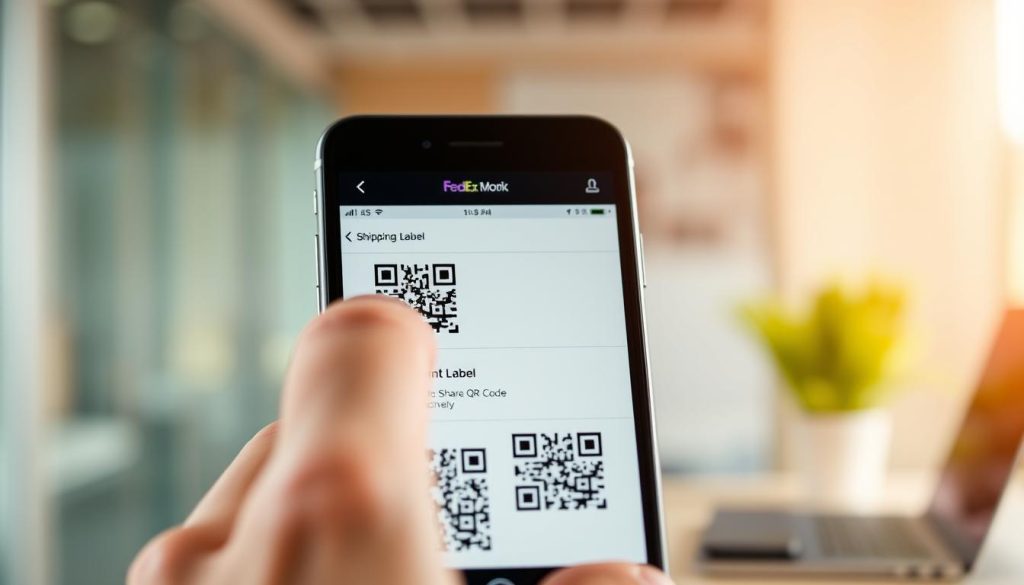
The app has many ways to make shipping easier. Here are the main options:
Locating the QR Code Feature
To find the QR code feature in the app, follow these steps:
- Tap the “Shipping” section
- Select “Create a Label”
- Choose the “QR Code” label type
Selecting Your Ideal Label Type
The app has different label types for your needs:
- Standard Print Label – A paper label for shipping
- Mobile QR Code – A digital label for easy shipping
- Email Shipping Label – A digital label sent to your email
Customizing Your Shipping Preferences
Make your shipping better by setting up the app. You can:
- Set default shipping methods
- Save payment info safely
- Get tracking updates
- Save shipping profiles for places you ship to often
These settings make your shipping smooth and personal.
How to Generate Your QR Code
Making a QR code for your FedEx shipping label is easy. The FedEx mobile app helps you do it in a few taps. It makes shipping simpler.
- Open the FedEx mobile app on your device
- Navigate to the shipping section
- Enter your package details carefully
- Select your preferred shipping options
- Review all shipping information
Reviewing Your Shipping Details
It’s important to check your shipping label details. Make sure everything is right:
- Recipient’s complete address
- Package dimensions and weight
- Shipping speed and service type
- Total shipping cost
Finalizing Your Shipping Label
After checking everything, tap Generate Label. The app will make a QR code for you. This code has all your shipping info.
Your QR code is now ready. Use it at any FedEx location or for digital shipping. Getting a QR code for FedEx shipping has never been easier.
Printing the QR Code for Your Shipment
Shipping labels can be hard to handle. But, FedEx QR codes make it easy. You can print a FedEx Express QR code at home or at a local spot. There are many ways to meet your shipping needs.
Convenient Printing Locations
You can print your label easily at:
- FedEx Office locations
- FedEx Ship Centers
- Participating retail partners
Home Printing Strategies
Printing at home needs care. Here’s how to make a clear label:
- Use high-quality white paper
- Select draft or normal print quality
- Ensure maximum contrast
- Print at actual size
Digital Display Alternative
You don’t always need to print. Many FedEx spots let you show your QR code on your phone. This saves paper and is super convenient.
| Printing Method | Pros | Cons |
|---|---|---|
| Mobile Display | Eco-friendly, instant | Requires charged device |
| Home Printing | Physical backup, flexible | Requires printer access |
| FedEx Location Printing | Professional quality, assistance available | May involve small fee |
Picking the right way to print makes sure your QR code works well. Choose what works best for you and your shipping needs.
Saving Your QR Code for Future Use
Managing your digital FedEx shipping labels is easy with smart storage. The FedEx mobile app has tools to track your shipping history and labels well.
- Use the FedEx app’s built-in history feature
- Take screenshots for offline backup
- Create digital folders on your device
- Export QR codes to cloud storage
Digital Label Management Techniques
Your shipping records are important. The app saves recent QR codes for quick access. Pro tip: Make a folder in your phone’s gallery for shipping documents to stay organized.
Mobile Retrieval Made Simple
Getting to saved QR codes is easy. Go to your shipping history in the FedEx app. There, past digital FedEx shipping labels are saved. Tap on any to view or make a new QR code.
Advantages of Complete QR Code Storage
Keeping a digital archive of your shipping QR codes has many benefits:
- Quick access to shipping records
- Easy tracking of past shipments
- Simplified customer service interactions
- Seamless expense tracking
By using these storage tips, you’ll make your shipping process better. It will save you time and reduce stress.
Troubleshooting Common QR Code Issues
Shipping with FedEx and using QR codes can sometimes present challenges. Understanding how to resolve common problems will help you navigate your fedex package tracking qr experience smoothly and efficiently.
What to Do If the QR Code Doesn’t Scan
When your fedex label qr code fails to scan, try these quick solutions:
- Check screen brightness and ensure the QR code is clearly visible
- Remove any screen protectors or clear coverings that might interfere
- Clean your device screen to remove smudges or fingerprints
- Adjust scanner positioning – hold device 6-8 inches from the code
Addressing Printing Problems
Printing issues can disrupt your shipping process. Here are some recommendations:
- Verify printer ink levels are sufficient
- Use high-quality paper for clear printing
- Adjust printer settings to highest resolution
- Consider using FedEx location printing for professional results
Managing Shipping Errors
If you encounter shipping errors with your QR code, don’t panic. Most issues can be quickly resolved by:
- Double-checking shipping address details
- Verifying package weight and dimensions
- Regenerating the shipping label if necessary
- Contacting FedEx support at 1.800.463.3339 for complex issues
Pro tip: Always keep your original shipping information handy to expedite troubleshooting.
Frequently Asked Questions About QR Codes and FedEx
Shipping with FedEx can seem hard. We’ve got answers to common questions about fedex express qr code. This will make your shipping easier.
Shipping Options Without a Mobile Device
Not everyone has a smartphone or tablet. But, you can make shipping labels and scan fedex qr code in other ways:
- Use the FedEx website on a computer
- Visit a local FedEx store for help
- Call FedEx customer support at 1.800.463.3339
QR Code Generation Without the App
You can make a FedEx QR code without the app. Here are ways to do it:
- FedEx online website
- Email label delivery
- In-person FedEx location services
Costs Associated with QR Codes
Good news for shippers! Making QR codes for your FedEx express qr code is completely free. It’s part of your shipping costs. This makes digital labeling easy and cheap.
If you have more questions, FedEx customer support is here to help. They can give you advice for your shipping needs.
Conclusion: Simplifying Your Shipping with QR Codes
Digital shipping solutions have changed how we send packages. Now, getting a QR code for FedEx shipping labels is easy. The FedEx mobile app makes shipping quick and simple.
Shipping is now easy. Just create a FedEx account, download the app, and enter your details. Then, you get a unique QR code. This way, you avoid paper mess and mistakes.
QR codes save you time and paper. You skip long lines and have your shipping info on your phone. It’s easy to manage your shipments anytime, anywhere.
Ready to change your shipping? Get your phone, download the FedEx app, and make your first QR code label. The future of shipping is digital, efficient, and in your hands.