What if a missed delivery cost you something important? Moving to a new home or updating your business location doesn’t mean you have to worry about packages going to the wrong place. UPS My Choice gives you the power to take control of your deliveries with just a few clicks.
You rely on UPS to bring your packages safely to your door. When your address changes, keeping your delivery information current becomes very important. Whether you’ve moved across town or across the country, knowing how to change your address on UPS My Choice ensures your shipments arrive exactly where you need them.
This guide will show you everything you need to know about updating your delivery address. You’ll learn the easiest ways to update your delivery address on UPS My Choice. You’ll also see why taking a few minutes now saves you headaches later. By the end, you’ll feel confident managing your address changes whenever life takes you somewhere new.
Key Takeaways
- Updating your address in UPS My Choice takes only a few minutes through the website or mobile app
- You can change your address for upcoming deliveries without affecting past shipments
- UPS My Choice lets you set temporary address changes if you’re away from home
- The mobile app offers a quick alternative to the desktop version for on-the-go updates
- Customer service stands ready to help if you run into any problems during the update process
- Keeping your address current prevents delivery delays and missed packages
Understanding UPS My Choice Benefits
Before you start making changes to your delivery settings, it’s smart to understand what UPS My Choice offers. This service changes how you manage your packages. Knowing its features shows why changing your address with UPS My Choice is important for your shipping needs.
Whether you shop online a lot or travel often, this platform gives you control over your deliveries.
What is UPS My Choice?
UPS My Choice is a free service that lets you manage your packages. You get complete visibility of your UPS deliveries. The basic membership is free and includes estimated delivery times, tracking numbers, and updates.
This means you always know when your packages arrive.
The service also offers a Premium membership for $19.99 a year. This upgrade has extra features for people who move a lot or want more delivery control. Premium members get more delivery options and priority support.
Advantages of Using My Choice
There are many benefits to using UPS My Choice:
- Receive instant delivery alerts and notifications
- Customize your UPS My Choice address settings for different locations
- Reschedule deliveries to fit your schedule
- Redirect packages to safe places or nearby pickup points
- Change registered address UPS My Choice whenever you relocate
- Set up delivery preferences for future shipments
Common Features Overview
Here’s what you’ll find in your UPS My Choice dashboard:
| Feature | Description | Membership Type |
|---|---|---|
| Delivery Notifications | Get real-time alerts about package arrivals | Basic & Premium |
| Package Tracking | Monitor your shipments from dispatch to delivery | Basic & Premium |
| Delivery Rescheduling | Change when packages arrive at your door | Basic & Premium |
| Address Management | Update and manage multiple delivery locations | Basic & Premium |
| Premium Support | Priority customer service assistance | Premium Only |
| Advanced Delivery Options | Enhanced control for frequent travelers | Premium Only |
Knowing these benefits prepares you for the next steps. You’ll be ready to navigate your account settings and make updates. Understanding these features makes updating your address smoother and more efficient.
Steps to Access Your UPS My Choice Account
Starting with your UPS My Choice account is easy. First, you need a UPS.com account and a My Choice membership. This guide helps you get into your account and use it to manage your deliveries.
Logging Into Your Account
Start by going to the UPS website. Look for the login at the top right. You’ll need your email and password to log in. If you don’t have an account, you can make one by following the steps.
After logging in, you’ll see your account dashboard. Forgot your password? Click “Forgot Password” and follow the email instructions.
Navigating the Dashboard
After logging in, you’ll see your My Choice dashboard. It’s where you manage your deliveries. You can see your recent and upcoming packages here.
To change your address, look for the menu on the left or top. You’ll find options for:
- My Delivery Preferences
- Account Settings
- Address Information
- Package Tracking
- Delivery History
The Account Settings section is where you update your address. Get to know these areas well. Now, you’re set to update your address.
Updating Your Address: Preparation
Editing your UPS My Choice profile address is easy. Just a few minutes of planning is all you need. Get everything ready before you start. This makes the process smooth and avoids mistakes.
Your UPS My Choice profile keeps your delivery info safe. Being organized now saves you stress later. You’ll edit your address fast and without trouble.
Collect Necessary Information
Before you edit your UPS My Choice profile, get all the info UPS needs. You’ll need:
- Your complete street address with the building number
- Apartment, suite, or unit number (if you have one)
- City name
- State abbreviation
- ZIP code plus the four-digit extension (if available)
- Phone number for delivery contact
- Any special delivery instructions for your location
Having this info ready makes editing fast. You won’t get stuck in the middle.
Knowing Your New Address Format
UPS has a special way to write addresses for delivery. It’s important to enter your address right. Spell out “Street” instead of “St.” and put apartment numbers after the street address with a comma.
Your ZIP code is critical. Check it twice to avoid delivery issues. Make sure your address on UPS My Choice matches official records. This keeps your packages from getting lost or sent to the wrong place.
Changing Your Address on UPS My Choice
Now you’re ready to change your address on UPS My Choice. It’s easy when you know the steps. This guide will help you update your delivery location with ease.
Step-by-Step Guide
First, open your dashboard on UPS.com. Pick the package you want to manage. Look for the Delivery Options button to change your address. If you can’t find it, your shipper might have blocked changes for that package.
Here’s what to do next:
- Click on the package you want to modify
- Select Delivery Options from the menu
- Follow the on-screen prompts carefully
- Choose your preferred delivery method
- Enter your new address details
There are different fees for your options. Rerouting costs $14.99. Sending to a UPS Access Point costs $5.99. Choose what fits your needs best.
Confirming the Changes
After you submit your new address, you’ll get a confirmation message. This shows your request was successful. Make sure all details are right on your screen.
| Delivery Method | Cost | Best For |
|---|---|---|
| Different Residential Address | $14.99 | Rerouting to another home |
| UPS Access Point | $5.99 | Picking up at your convenience |
| Different Business Address | $14.99 | Sending to workplace |
Double-check everything before you finish. If you find an error, fix it now. Your confirmation email will come soon with your new delivery address details.
Alternative Methods to Change Your Address
Changing your mailing address with UPS online is easy. But, you can also use other ways. These options let you manage your account in different ways. You can use your phone or talk to someone directly.
Using the UPS Mobile App
The UPS mobile app makes changing your address simple. You can do it anytime, anywhere. It’s easy to use, making updates quick during your move.
To start, download the UPS app from your app store. Log in with your UPS My Choice info. Then, go to your account settings and find the address section.
Key benefits of the mobile app include:
- Real-time delivery updates sent directly to your phone
- Quick address changes without needing a computer
- Easy access to your delivery preferences anytime
- Confirmation notifications when changes are saved
Contacting UPS Customer Service
Need help with your address change? UPS customer service is here for you. They can help with delivery restrictions or technical issues.
Call UPS customer service at 1-800-742-5877. Have your tracking info and new address ready. The best times to call are weekdays during business hours. They can also help with online issues.
Contact UPS customer service when:
- The shipper has restricted delivery options
- You encounter technical problems with the online system
- Your address change needs special handling
- You want confirmation that your update was successful
Address Change for Future Deliveries
After updating your UPS My Choice address, make sure your new address is set as default. This is key so packages know where to go. It keeps your shipments coming to the right place without any mix-ups.
This helps you avoid missing important packages while you’re getting settled in your new home.
Setting Up New Delivery Preferences
Your UPS My Choice dashboard has tools to manage where packages go. After updating your address, customize how drivers handle your shipments. These settings are your guide for every delivery.
You can choose from several delivery options that fit your needs:
- Leave packages in a safe spot near your door
- Authorize drivers to leave items with a trusted neighbor
- Request signature confirmation for valuable items
- Direct packages to your nearest UPS store
- Schedule specific delivery time windows
To access your preferences, log into your account and find the settings. Your new address should be your main location for all deliveries.
Scheduling Deliveries to the New Address
Timing is important when moving. UPS My Choice lets you pause deliveries if you’re not ready yet. This is great for moving slowly or waiting for utilities.
| Feature | Best For | Duration |
|---|---|---|
| Hold at UPS Store | Transition periods | Up to 7 days |
| Delivery Suspension | Temporary delays | Customizable |
| Scheduled Delivery | Specific dates | Single shipment |
| Neighbor Delivery | Unavailable times | Per package |
When you’re ready, update your UPS My Choice settings to start normal deliveries. You can also pick specific delivery dates for expected packages. This keeps your move smooth and prevents packages from arriving too early.
Frequently Asked Questions (FAQs)
When you’re learning how to change address on UPS My Choice, questions pop up. You might wonder about timing, temporary moves, or what happens if something goes wrong. This section answers your most pressing concerns about updating your delivery address.
How Long Does Address Update Take?
After you submit your address change through UPS My Choice, the update usually takes effect within a few hours. For packages already in transit, your new address won’t apply to them. You’ll need to redirect those shipments separately or contact UPS directly.
Future packages will go to your updated address once the system processes the change. Keep in mind that address updates during weekends or holidays might take slightly longer to process.
Can I Change My Address Temporarily?
Yes! UPS My Choice includes a hold feature perfect for temporary situations. Whether you’re traveling, staying at a vacation home, or temporarily relocating, you can pause deliveries for a set period.
- Activate vacation hold mode in your account settings
- Set your hold dates for your temporary stay
- Deliveries automatically resume on your chosen date
- Return to your primary address without extra steps
What if I Experience Issues?
Sometimes address changes don’t save properly, or you get error messages. Common problems include restricted delivery zones or format issues with your new address.
Try these steps first: clear your browser cache, verify your address spelling, and check that your new location accepts UPS deliveries. If problems continue, contact UPS Customer Service for support with how to change address on UPS My Choice successfully.
Tips for a Smooth Address Change
Moving to a new place needs careful planning, like when you use shipping services. Changing your UPS account address is more than just online updates. You must think about timing, organizing, and coordinating with other services. Here are some tips to help your address change go smoothly.
Ensuring All Deliveries Are Updated
Timing is key when you change your address. Update your UPS My Choice account too early, and packages might go to your new home before you do. Wait too long, and you might miss deliveries at your old home. The best time to update is about one week before you move.
After changing your UPS account address, check all active shipments. Make sure each package has your new address. Create a simple list of items you’re expecting and check each one. This helps avoid packages going to the wrong place.
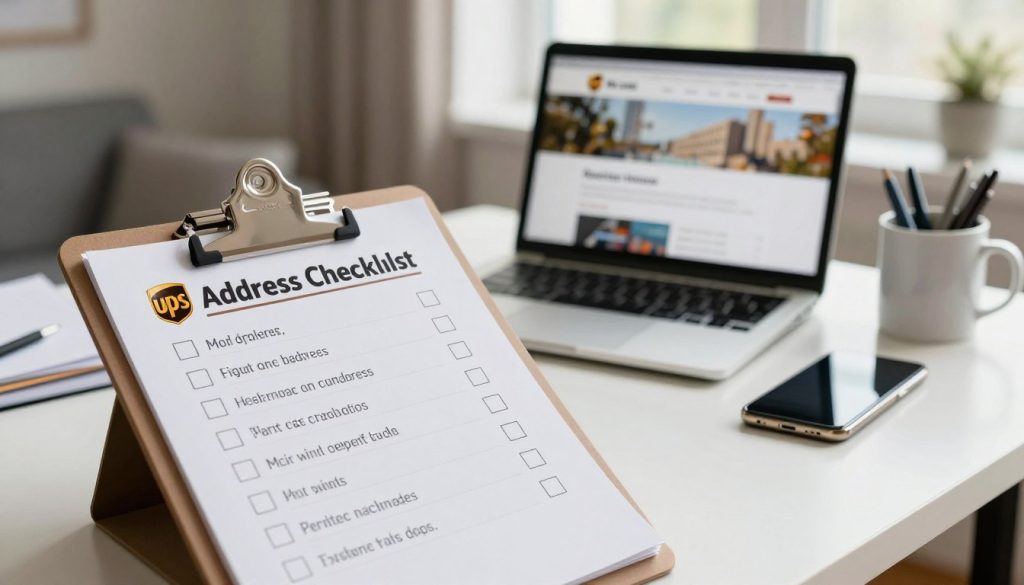
Always keep your address book up to date. A well-kept address book makes shipping easier and cuts down on delivery mistakes. This saves you time and stress during your move.
Updating Other Important Services
Your UPS account address change is just part of the bigger picture. You should tell many carriers and services about your move:
- USPS (United States Postal Service) for mail forwarding
- FedEx for package deliveries
- Amazon for online orders
- Insurance companies and banks
- Subscription box services
- Online retailers you use often
Reach out to each service separately to make sure nothing is missed. This way, your deliveries will keep running smoothly across all platforms.
Finalizing Your Address Change
You’re almost done with your address update. Now, it’s time to make sure everything is right. Verifying your changes helps avoid missed packages and delivery issues later. This step keeps your future shipments safe.
Reviewing Change Confirmation
UPS will send you a confirmation message after you update your address. Check your email inbox and spam folder for it. The message should show your new address and the date of the change.
Go back to your UPS My Choice account to check your profile. Look at the address section carefully. Make sure the street address, city, state, and ZIP code are correct.
Save or print your confirmation email. It’s good to have it for future reference. Keep it with your important documents.
Monitoring Future Deliveries
After updating your address, watch your packages closely. UPS My Choice lets you track and see where your packages are. Check the tracking details for each shipment to confirm the address.
Keep an eye on your deliveries for a week or two. If you see a package with your old address, contact UPS. They can fix the issue before it’s too late.
The tracking tools in UPS My Choice make it easy to monitor your packages. You can check them anytime from your phone or computer. This gives you peace of mind, even after big changes like moving.